Activity log & undo
Review every AI action on your site and undo changes one by one.
The Activity tab lists every request an AI app made to your site: which app, which user, what it did, whether it worked and how long it took. When an AI changed a page, a template, a popup or the Design System, you can undo that change with one click.
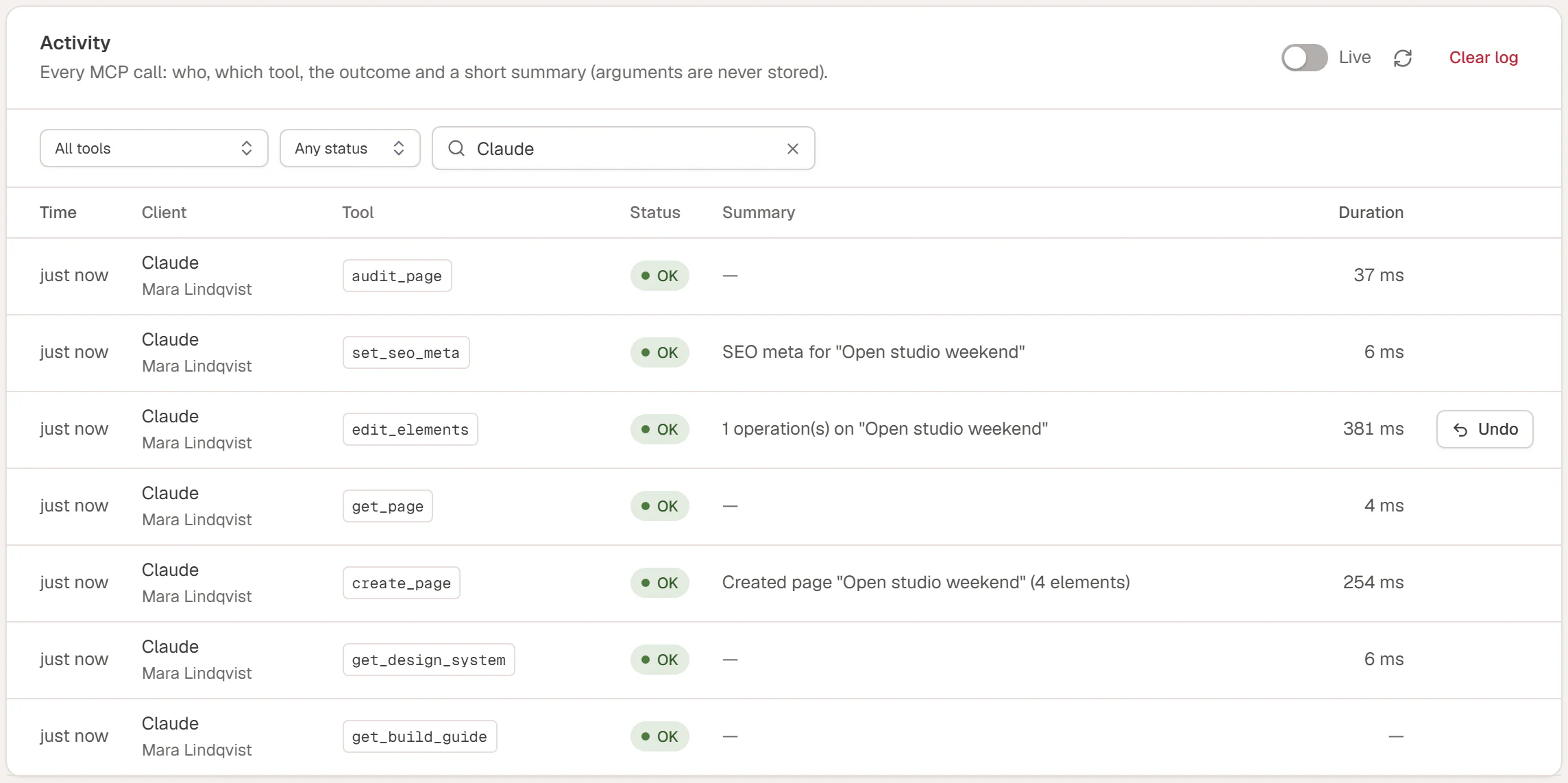
Read the log
Go to Urmi → AI & MCP → Activity. The newest entries are at the top, 25 per page. Use Previous and Next at the bottom to go back in time.
| Column | Meaning |
|---|---|
| Time | How long ago it happened. Point at it to see the exact date and time. |
| Client | The app (for example Claude, or the name of an API key) and the WordPress user it acted as. |
| Tool | The tool the AI used, such as create_page, edit_elements or update_design_system. What AI can do explains the tools in plain words. |
| Status | The result: see below. |
| Summary | A short description, such as Created page "Open studio weekend". |
| Duration | How long your site took to answer. |
The log stores what happened, never the full content an AI sent. Approvals of new apps and newly created API keys are logged too.
Statuses
| Status | Meaning |
|---|---|
| OK | The request worked. |
| Error | The request was understood but failed, for example because the page does not exist or the user may not change it. The summary says why. |
| Invalid | The request was malformed, for example a missing or wrong setting. The AI gets an explanation and usually retries. |
| Rate limited | The app sent more requests per minute than the rate limit allows. It has to wait a moment. |
| Revoked | Access was cut off, for example because a sign-in token was reused. |
A request that is refused because the connection lacks a permission, or because the user's role has no access, shows as denied.
Filter the log
- All tools: show only one tool, for example every
update_design_systemcall. - Any status: show only errors, for example.
- The search box filters the entries on the current page by app, user, tool or summary.
Turn on Live to refresh the list every 8 seconds while an AI is working. The refresh button next to it reloads the list once.
Undo a change
Entries that changed something and saved the previous state have an Undo button: edits to pages and posts, templates, popups, display conditions and the Design System.
Find the change
Look for the entry, for example Updated "About". Filter by tool or status if the list is long.
Click Undo
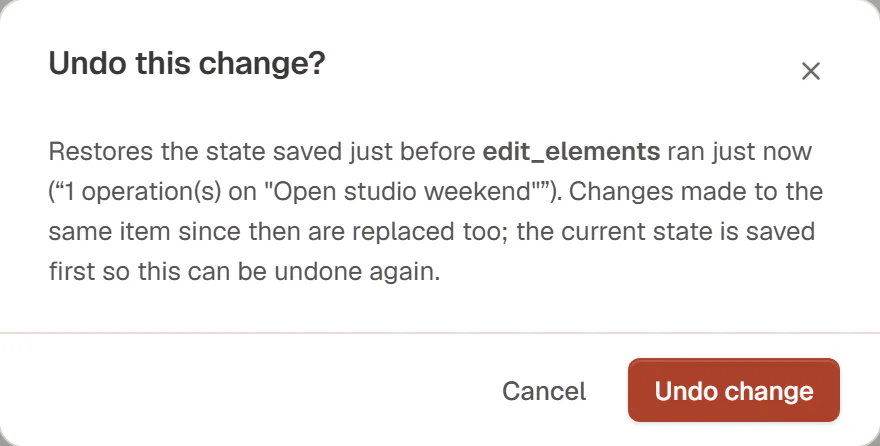
The confirmation tells you which tool ran, when, and what the summary was.
Confirm
Click Undo change. The page, template or Design System goes back to the state it had just before that request.
Good to know:
- Later changes to the same item are replaced too. Undo restores the item as it was before that request. If you or the AI edited it afterwards, those edits go back as well.
- You can undo an undo. Before restoring, Urmi saves the current state, so the undo itself shows up in the log and can be undone.
- The last 15 versions per page are kept. Older AI versions of the same page are removed.
- Not everything needs an undo. New pages and templates can be deleted by you. Menus have no undo button: the AI receives the previous items and can put them back if you ask it.
You can also tell the AI "undo your last change". It uses the same saved versions. If the page is open in the editor when the AI changes it, you can click Undo in the "Updated by …" message instead, then save the page to keep your version.
If Undo snapshots is turned off in Server settings, no previous states are saved and no Undo buttons appear.
Clear the log
Click Clear log and confirm to delete every entry. The saved versions stay attached to their pages, but they are no longer listed here, so you cannot undo from this tab any more.
Entries older than 30 days are deleted automatically every day. Change the period with Keep activity for in Server settings.