Performance
Keep your site fast: what Urmi loads, hero image priority, lazy loading, embeds, font delivery and caching plugins.
On this page
Urmi is built to load little by default: each page gets only the styles and scripts it needs, images load lazily, and videos and maps wait until a visitor wants them. This page explains what happens automatically, which switches you can change, and how Urmi works with caching plugins.
The speed settings are in Urmi → Settings → General.
What Urmi does automatically
- Only what the page uses. The styles and scripts of a widget load only on pages that contain it. A page without a slider never loads slider code.
- One stylesheet per page. When you save a page or template, Urmi writes its styles into a small CSS file in your uploads folder. The Design System has its own file. Browsers cache these files, so the next page loads faster.
- Scripts wait. Urmi's front-end script is small, loads at the end of the page and does not block the page from showing.
- Lazy images. Images load when visitors scroll near them, except the hero image (see below).
- Light embeds. The Video and Video Playlist widgets show a poster and a play button; YouTube or Vimeo loads only when the visitor clicks play (Load player on click, on by default). The Google Maps widget loads lazily, or only after a click with Load on click.
If your uploads folder is not writable, Urmi prints the styles into each page instead of files. Settings → Tools then shows a warning. Ask your host to fix the folder permissions, because separate files load faster and can be cached.
Speed settings
| Setting | What it does |
|---|---|
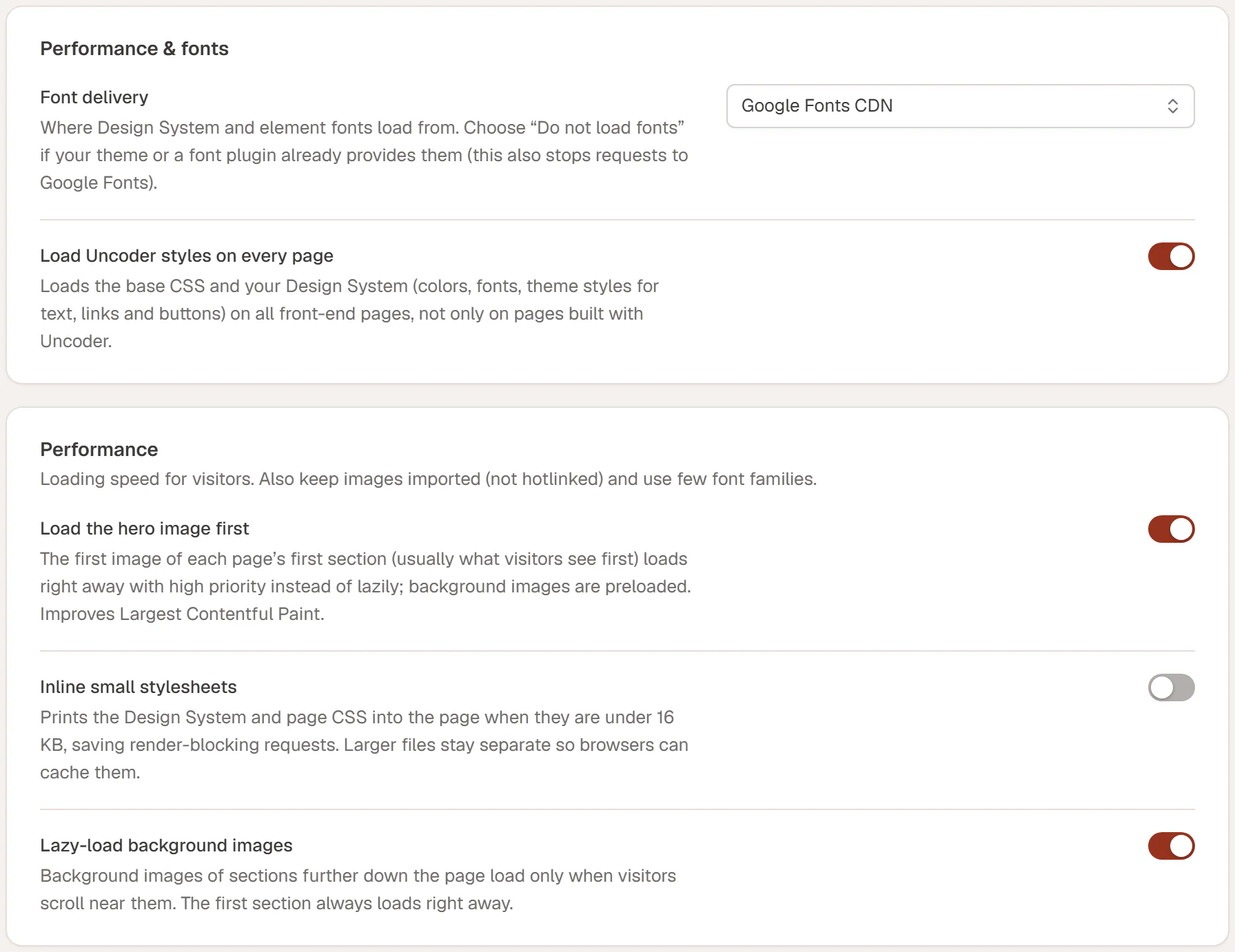
| Load the hero image first | The first image in each page's first section, usually the first thing visitors see, loads right away with high priority instead of lazily. A background image there is preloaded. This improves Largest Contentful Paint, a speed score search engines use. On by default. |
| Inline small stylesheets | Prints the Design System and page CSS directly into the page when they are smaller than 16 KB, which saves separate requests before the page can show. Larger files stay separate so browsers can cache them. Off by default. |
| Lazy-load background images | Background images of sections further down the page load only when visitors scroll near them. The first section always loads right away. On by default. |
Click Save changes in the bar at the bottom of the screen after changing them.
Inline small stylesheets helps most on sites where visitors often see only one page, such as landing pages. On sites where visitors browse many pages, separate cached files can be just as fast. Try both with a speed test.
Fonts
Fonts are often the heaviest part of a page. In Performance & fonts, Font delivery decides where they come from:
| Option | What happens |
|---|---|
| Google Fonts CDN | Fonts load from Google's servers. The default. |
| Self-hosted (downloaded once, no requests to Google) | Urmi downloads each Google font once and serves it from your site. No requests to Google, which also helps with privacy laws. |
| Do not load fonts | Urmi loads no fonts. Use it when your theme or a font plugin already loads them. |
Urmi loads only the fonts and weights your Design System and elements use, and text shows in a fallback font until the web font has arrived, so nothing stays invisible.
Keep the number of font families low: two families (one for headings, one for text) with a few weights are plenty.
Load Urmi styles on every page loads your Design System on pages that are not built with Urmi too, so blog posts and other pages match the rest of the site. If only a few pages use Urmi and the rest use your theme's own styles, you can turn it off to save a request on those pages.
Caching plugins
Urmi works with page caching plugins such as WP Rocket, LiteSpeed Cache, W3 Total Cache, WP Super Cache, WP Fastest Cache, SiteGround Optimizer and Autoptimize, and with host-level caching.
- After you publish or update a page, most caching plugins clear that page's cache on their own.
- After you change the Design System, a header, a footer or another template, many pages change at once. Clear the whole cache in your caching plugin so visitors get the new version.
- If styles look outdated, go to Settings → Tools and click Regenerate CSS, then clear the cache. See Site tools.
- A connected AI assistant with the Site permission can do both in one step: ask it to "clear the cache". It regenerates Urmi's CSS and clears the cache of the plugins listed above.
Optimization plugins that combine, minify or delay CSS and JavaScript usually work too. If menus, popups, sliders or animations stop working after you turn on such an option, exclude the Urmi plugin's files in that plugin's settings, or turn off "delay JavaScript" for them.
Tips for fast pages
- Upload images to your media library instead of linking to images on other sites, and use a sensible size: a 4000-pixel photo for a 600-pixel card slows the page down.
- Keep the first section light. It is what visitors see first. One hero image is better than a slider of five.
- Use fewer animations above the fold. Entrance animations on the hero delay what visitors see.
- Measure. Test a page with PageSpeed Insights (opens in a new tab) before and after changes.