Code Highlight
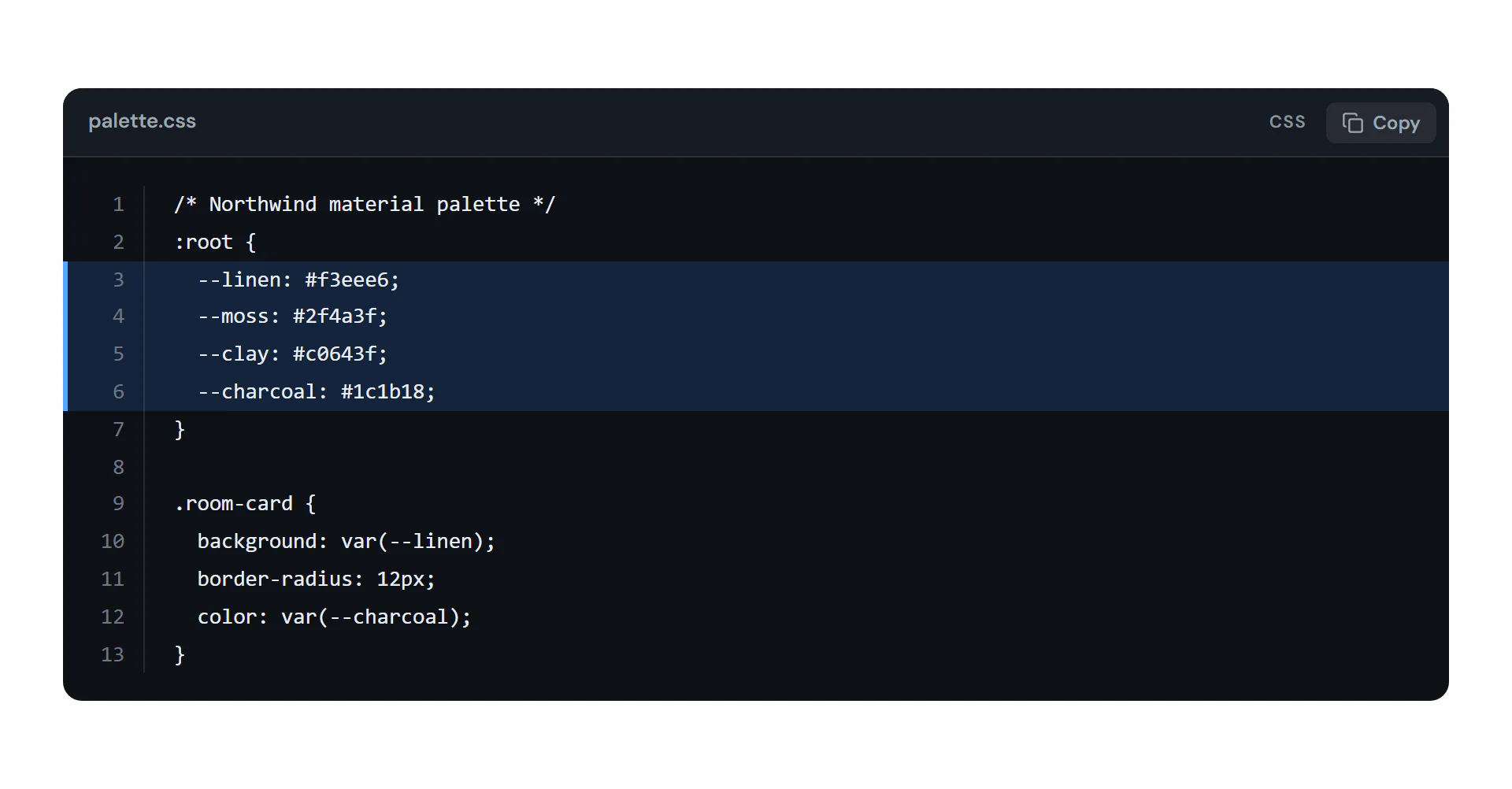
A code snippet in a styled block with a file name, line numbers, highlighted lines and a copy button.
On this page
The Code Highlight widget shows a piece of code exactly as you typed it, in a dark or light block with a file name, a language label, line numbers and a Copy button. You can highlight lines to point readers to the part that matters. Use it for tutorials, documentation or any snippet visitors should copy.
Add a Code Highlight
Open Insert in the left panel and find Code Highlight in the Content group, or type "code" in the search box. Drag it onto the canvas, or click it to add it next to the selected element. See Add elements.
Paste your code into Code. It is shown as plain text: HTML tags and symbols appear as they are, and nothing in the code runs on your page.
Highlight lines
Type line numbers or ranges in Highlight lines, separated by commas, such as 2, 4-6. Those lines get a colored background and a marker. If your snippet is part of a longer file, set First line number so the numbers match the original.
The widget does not color the code by language. Language sets the label in the header, and the code keeps the colors of the block's Theme. Use highlighted lines to draw attention to parts of the code.
Content tab settings
| Setting | What it does |
|---|---|
| Code | The code to show, exactly as typed. |
| Language | The label shown in the header: Plain text, HTML, CSS, SCSS, JavaScript, TypeScript, JSX, JSON, PHP, Python, Ruby, Go, Rust, Java, Kotlin, Swift, C, C++, C#, Bash, PowerShell, SQL, YAML, Markdown or Diff. Default: JavaScript. Plain text shows no label. |
| File name / title | A name in the header, such as fetch-posts.js. |
| Show language label | Shows the language in the header. On by default. |
| Line numbers | Numbers each line. On by default. |
| First line number | The number of the first line (0–99999). Default: 1. Shown when Line numbers is on. |
| Highlight lines | Line numbers or ranges to highlight, separated by commas, such as 2, 4-6. |
| Wrap long lines | Wraps long lines instead of scrolling sideways. Off by default. |
| Copy button | Adds a button that copies the code. On by default. |
| Copy label | The button text. Default: Copy. Shown when Copy button is on. |
| Copied label | The text shown after copying. Default: Copied!. Shown when Copy button is on. |
| Theme | Dark or Light block. Default: Dark. |
Design tab settings
| Section | Settings |
|---|---|
| Box | Font size, Code typography, Max height (longer code scrolls inside the block), Tab size, Background, Text color, Code padding, Border radius, Border, Shadow. |
| Header | Background, Text color, Typography. |
| Lines | Line number color (when line numbers are on), Highlighted line background, Highlighted line marker. |
| Copy button | Text color and Background (with Normal and Hover tabs). Shown when Copy button is on. |
The Design tab also has the sections every element shares: Spacing & position, Background & border and Mask. See Spacing, size & position.
Behaviour tab
The Behaviour tab has the settings every element shares: anchor and classes, entrance animations, motion effects, visibility per device, display conditions and interactions. See Visibility.
Tips
- Keyboard users can focus the code area and scroll it with the arrow keys, so long lines stay reachable.
- To add HTML that should show as part of the page, rather than as code, use the HTML widget instead.