General
Choose which content types use Urmi, how fonts load, whether Urmi styles load on every page, and loading speed options.
The General section decides where the builder is available and how Urmi's styles and fonts reach your visitors. Go to Urmi → Settings → General.
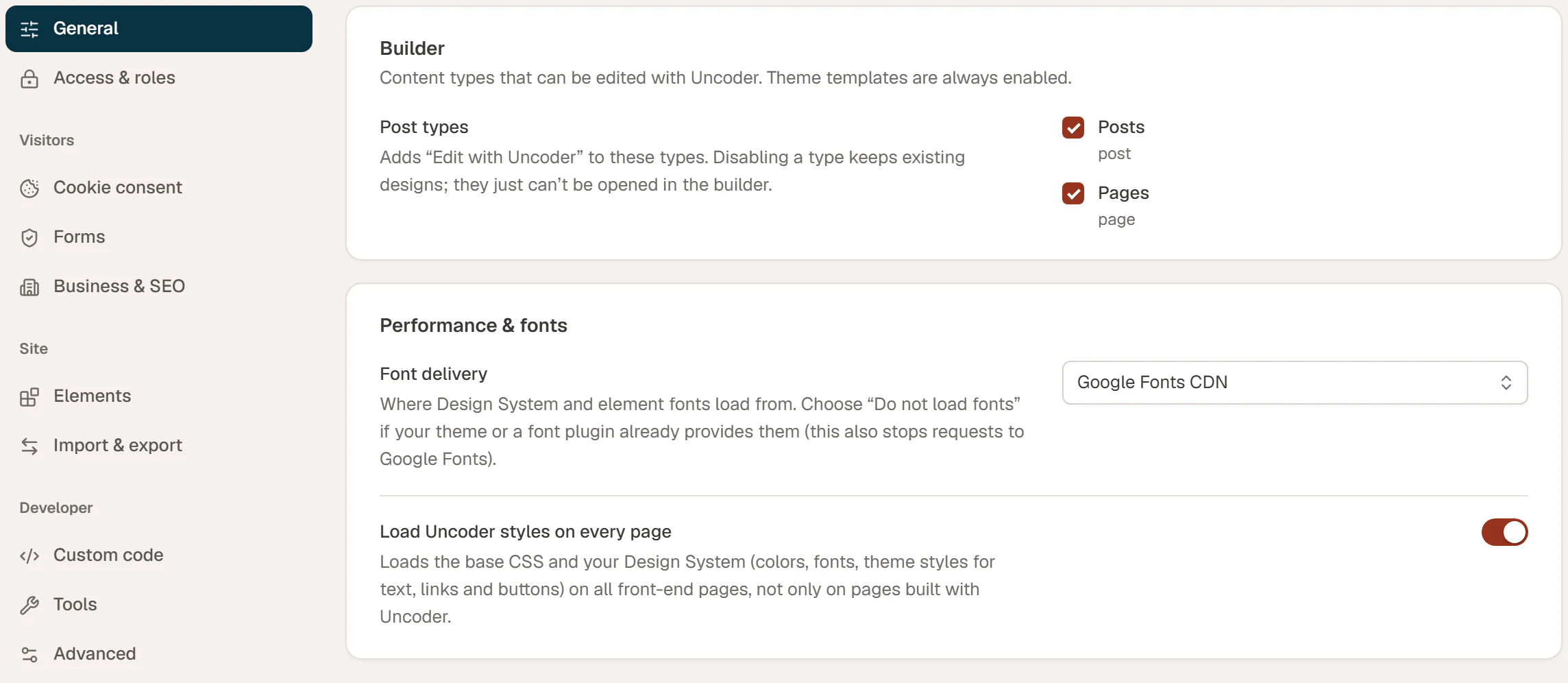
Builder
| Setting | What it does |
|---|---|
| Post types | The content types that get Edit with Urmi. Posts and Pages are on by default. Custom post types from your theme or other plugins, such as portfolio items, are listed here too. Theme Builder templates always work, whatever you choose. |
Turning a type off does not delete anything. Pages of that type that were built with Urmi keep their design on the site; they just cannot be opened in the builder until you turn the type back on.
Performance & fonts
| Setting | What it does |
|---|---|
| Font delivery | Where the fonts of your Design System and elements load from: Google Fonts CDN (the default), Self-hosted (downloaded once, no requests to Google) or Do not load fonts. |
| Load Urmi styles on every page | Loads Urmi's base styles and your Design System (colors, fonts, and the theme styles for text, links and buttons) on every page of the site, including pages made with the WordPress editor. When off, they load only on pages and templates built with Urmi. On by default. |
Choose a font delivery
- Google Fonts CDN loads fonts from Google's servers. It is the simplest option.
- Self-hosted downloads each Google font once to your site's uploads folder, and visitors' browsers load it from your site. Visitors never contact Google, which helps with privacy laws such as the GDPR. The first visit after you add a font may show the fallback font while the download runs.
- Do not load fonts is for sites where the theme or a font plugin already loads the fonts. It also stops all requests to Google Fonts.
Custom fonts you upload are always served from your site. Adobe Fonts always load from Adobe.
Load Urmi styles on every page is the same setting as Apply to the whole site in the Design System's Theme tab. Changing it in one place changes it in the other.
Performance
The Performance card below has three switches for loading speed: Load the hero image first, Inline small stylesheets and Lazy-load background images. They are explained on the Performance page.
Click Save changes in the bar at the bottom of the screen to save your changes.