Adding elements
Insert widgets and sections from the Insert panel, by drag and drop or with the keyboard.
On this page
Everything on an Urmi page is an element: containers that hold the layout, and widgets such as headings, images and buttons. You add them from the Insert tab of the left panel, from the canvas, or from the keyboard.
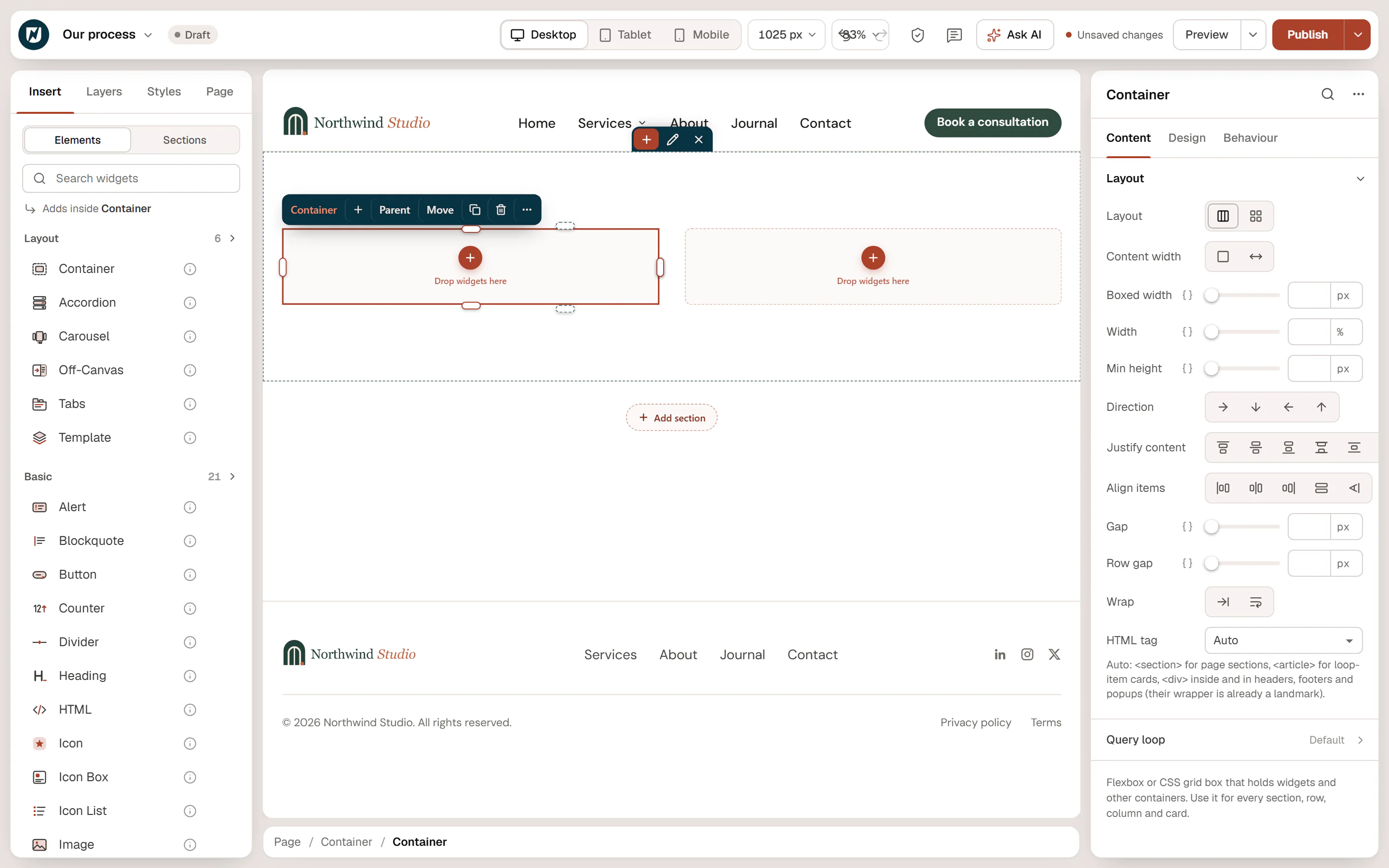
The Insert panel
Click Insert in the left panel. At the top, switch between Elements (single widgets) and Sections (ready-made layouts, patterns and your saved sections, see Sections & patterns).
The Elements view lists every widget by group:
- Favourites: widgets you pinned.
- Recent: the last six widgets you added.
- The widget groups: Layout, Basic, Media, Marketing, Content, Forms and Site & theme.
Hover the ⓘ icon next to a widget to read what it does. Widgets turned off in Settings → Elements are not listed.
Above the list, a line tells you where a clicked widget will go: Adds a new section at the end of the page, Adds inside Container or Adds after Heading. It follows your selection.
Add a widget
Click
- Select where the widget should go: a container to add inside it, or a widget to add after it.
- In Insert → Elements, click the widget.
With nothing selected, the widget goes into a new section at the end of the page.
Drag and drop
- Drag a widget from the Insert panel onto the canvas.
- A line shows where it will land, and the container that receives it is outlined. Near the edge of a container, the widget goes next to the container instead of inside it.
- Release the mouse. Press Esc while dragging to cancel.
A widget dropped between sections gets its own new section.
Keyboard
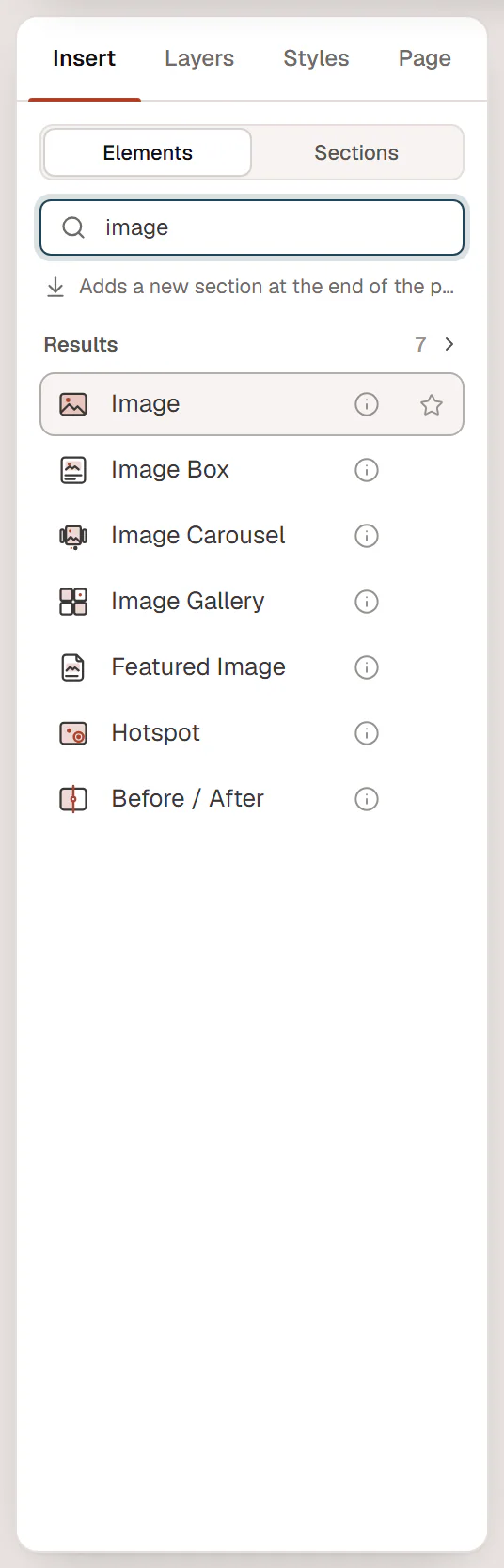
- Press Shift+A to open Insert with the cursor in the search box. With Insert already open, you can also just start typing while the canvas has the focus.
- Type part of the name, for example
ima. - Press ↓ or ↑ to pick a result and Enter to add it.
After you add a widget, it is selected so you can edit it straight away in the inspector.
Add a section
- At the end of the page: scroll to the bottom of the canvas and click Add section. Pick one of six layouts: One column, Two columns, Three columns, Four columns, Two thirds + one third or One third + two thirds. Columns sit side by side on desktop and stack on phones.
- Above a section: hover a section and click the + on the handle at its top edge (Add a section above).
- On an empty page: the canvas shows Start with a layout with the same six layouts, and the editor opens with the Insert panel.
- From Insert → Sections: add a layout, a ready-made pattern or a saved section. See Sections & patterns.
A new section is added with its first empty column selected, and Insert opens so you can fill it.
Fill an empty container
An empty container shows Drop widgets here and a + button. Click + to select the container and jump to the widget search, or drag a widget onto it.
To add something inside a container that already has content, select it and click + (Insert inside) on the element toolbar.
Drop images from your computer
Drag image files from your desktop onto the canvas. They are uploaded to the Media Library and added as Image widgets where you drop them. You can also paste a screenshot with Ctrl+V. See Copy, paste & duplicate.
Pin your favourite widgets
Hover a widget in the Insert list and click the star (Pin to Favourites), or focus it with the keyboard and press F. Favourites appear at the top of the list, in every browser you use. To remove them all, open Preferences… from the Urmi menu and click Clear next to Favourite widgets.
Other ways to add elements
- The command palette: press Ctrl+K and type Insert and a widget name.
- Paste HTML from another website or an AI chat: it becomes editable elements.
- Connect an AI assistant and ask it to build the section for you.