AI in the editor
Rewrite text, translate, write alt text and generate images without leaving the editor.
With AI turned on, text fields in the editor get an AI writing button, and image fields can write alt text and generate new images. You stay in control: the AI changes only the field you pick, and every change can be undone.

Before you start
The AI buttons use the AI provider set up in WordPress under Settings → Connectors, which needs WordPress 7.0 or newer. An administrator turns them on in Urmi → AI & MCP → AI writing:
- AI actions in the editor adds AI writing and alt text. See AI writing.
- Generate images in the editor adds AI images. See AI images.
When these are off, the AI buttons do not appear in the editor. When they are on but no provider can do the job, the buttons show a short note that explains why.
The Ask AI button in the top bar is something else: it explains how to connect an AI assistant such as Claude or ChatGPT to your whole site over MCP, so it can build and edit pages for you. See AI & MCP.
Rewrite text
Open the AI menu
Select an element and go to its Content tab. Click the sparkles icon (AI writing) next to a text field, for example a heading's Title or a text block's Content.
Choose what to do
- Improve writing, Make shorter, Make longer or Fix spelling & grammar.
- A Tone: professional, friendly, confident, simple or persuasive.
- Translate to…: type a language, for example Spanish, and press Enter.
- Or tell it what to change…: type your own instruction, for example mention our free first visit.
Check the result
The new text replaces the old one in the field and on the canvas. The editor confirms Text updated. Not happy? Press Ctrl+Z (⌘+Z on a Mac) to get the old text back.
The menu reminds you: Sends this field’s text to the AI provider set up in WordPress. Check the result: AI can make mistakes. The button is not shown on technical fields such as links, CSS classes or code, or on fields that show dynamic data.
A field can hold up to 12,000 characters for the AI tools. If many requests are sent in a short time, the editor asks you to wait a few minutes.
Write alt text for an image
On an image field that uses a picture from the Media Library, click Write alt text with AI. The AI looks at the image, writes a short description, saves it on the image in the Media Library and fills it into the field. If the image looks purely decorative, it leaves the alt text empty and tells you so.
This works for JPEG, PNG, GIF and WebP images up to 4 MB.
Generate an image
Open the dialog
On an image field, click Generate with AI.
Describe the image
Under Describe the image, write what you want to see, for example A bright, modern kitchen with oak cabinets, soft morning light, photo. Pick the shape with the three buttons below the description: Landscape (the default), Square or Portrait.
Generate
Click Generate (or press Ctrl+Enter). Creating the image can take up to a minute. Not quite right? Change the description and click Generate again.
Use it
Click Use this image. Every generated image is saved to your Media Library.
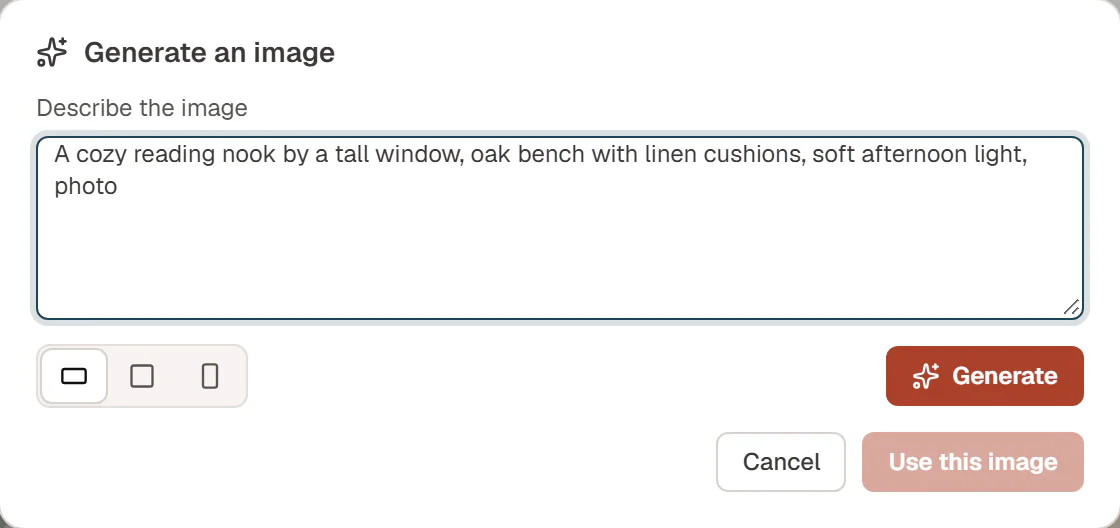
The description is also used as the image's alt text, so check it and write a proper description afterwards (or use Write alt text with AI).