Spam protection
Stop spam with the built-in honeypot, time checks and CAPTCHA.
Every Urmi form is protected against spam bots out of the box, without annoying real visitors. On top of that you can reject messages full of links, and add a CAPTCHA from Cloudflare Turnstile, hCaptcha or Google reCAPTCHA for forms that still attract spam.
Always on
These checks protect every form, with nothing to set up:
| Check | What it does |
|---|---|
| Honeypot | A hidden field that people never see but bots fill in. A filled-in honeypot marks the submission as spam. |
| Signed timestamp | Each form carries a signed time stamp. Submissions without a valid one, or older than a day, are refused with "This form has expired. Please reload the page and try again." |
| Rate limit | At most 5 submissions per minute from the same IP address. More get "Too many submissions. Please wait a minute and try again." |
| Same-site check | Browsers cannot send your form from another website. |
Per-form settings
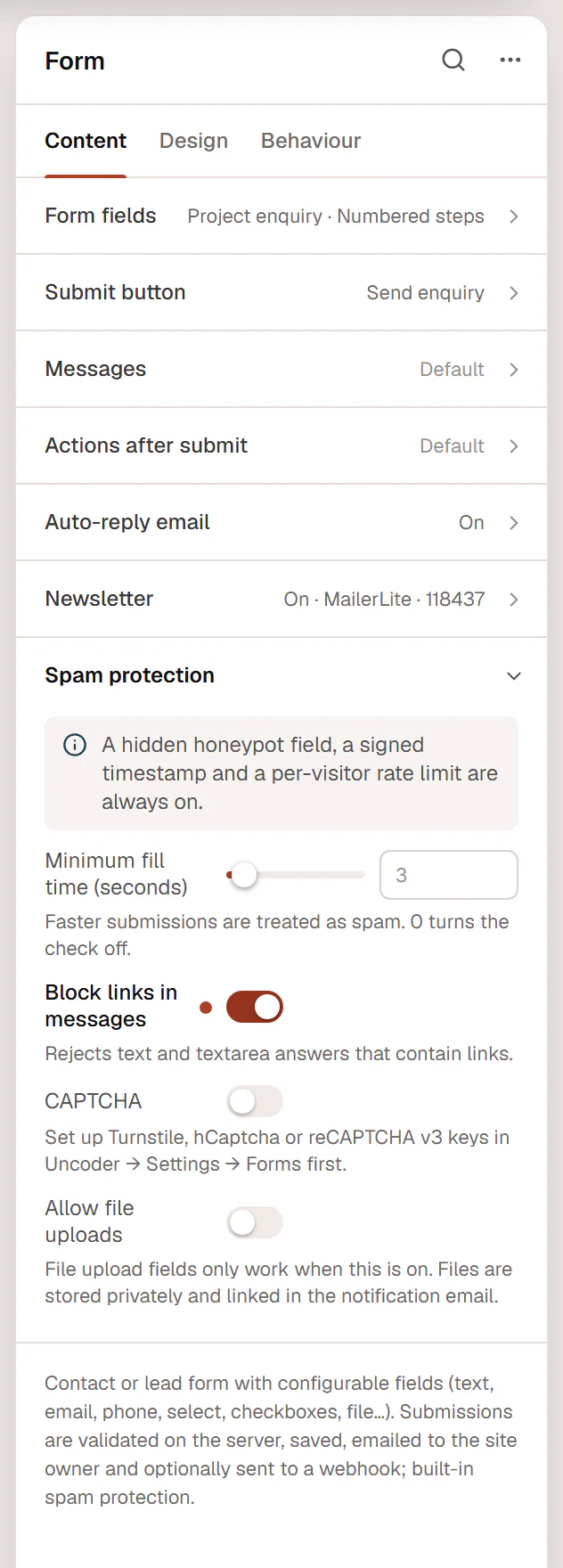
Open the Form widget's Content → Spam protection:
| Setting | What it does |
|---|---|
| Minimum fill time (seconds) | Submissions sent faster than this after the form loaded are treated as spam (3 seconds by default, up to 60). 0 turns the check off. |
| Block links in messages | Rejects answers in Text and Textarea fields that contain links, with the message "Links are not allowed in this field." Useful for contact forms that get link spam. |
| CAPTCHA | Adds the CAPTCHA set up in Urmi → Settings → Forms to this form, whichever provider you chose there. Without a provider and keys, it has no effect. |
| Allow file uploads | File upload fields only work when this is on. Uploaded files are stored privately and linked in the notification email. |
What happens to spam
When the honeypot or the minimum fill time catches a submission, the visitor sees the normal success message, so bots learn nothing. The submission goes to the Spam tab of Submissions (without uploaded files), no email is sent and no other action runs. Spam is deleted automatically after 30 days. If a real message ends up there, open it and click Not spam.
A failed CAPTCHA is different: people can fail it too, so the visitor sees "Please complete the security check and try again." and can retry.
Add a CAPTCHA
Create keys with the provider
Create a site in your provider's dashboard for your domain and copy its site key and secret key: Cloudflare Turnstile (free, usually invisible), hCaptcha, or Google reCAPTCHA (v2 checkbox or v3 invisible).
Enter them in Urmi
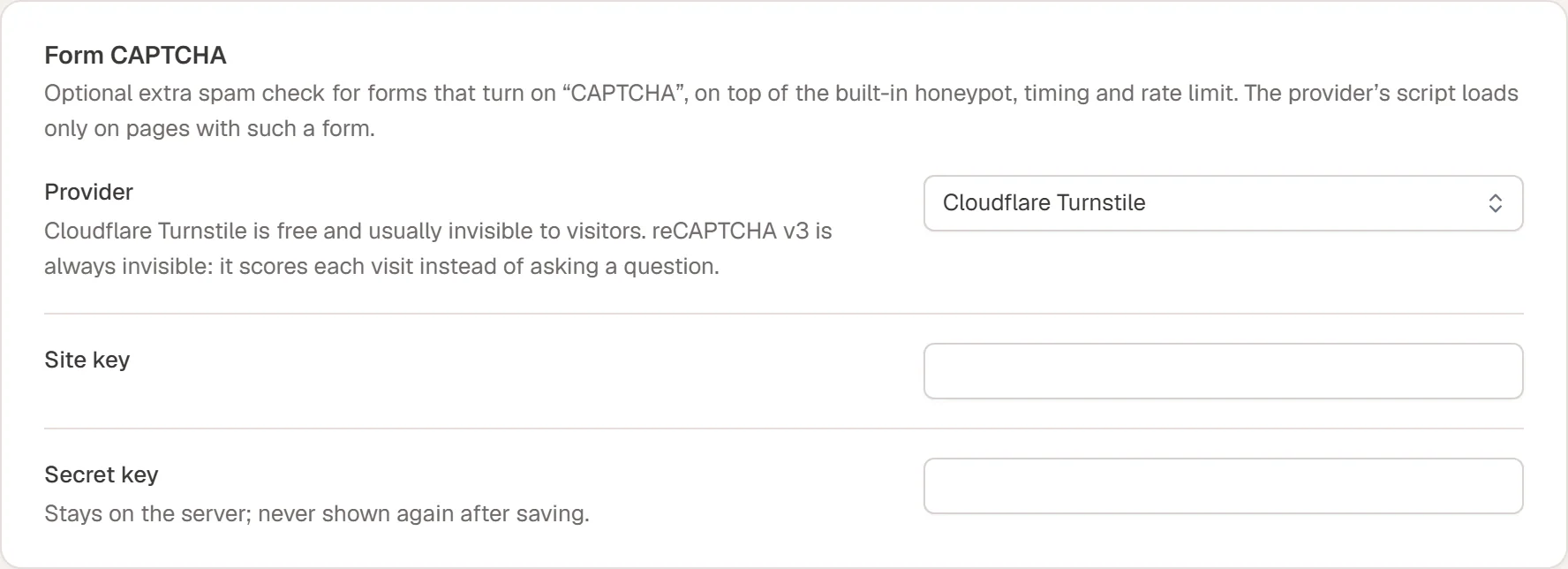
Go to Urmi → Settings → Forms. In Form CAPTCHA, choose the Provider and paste the Site key and Secret key. Click Save changes.
Turn it on in your forms
In each form that needs it, turn on CAPTCHA in Content → Spam protection.
| Setting | What it does |
|---|---|
| Provider | Off, Cloudflare Turnstile, hCaptcha, Google reCAPTCHA v2 (checkbox) or Google reCAPTCHA v3 (invisible). |
| Site key | The public key from the provider. |
| Secret key | The private key. It stays on the server and is never shown again after saving; leave the field empty to keep the saved one. |
| Minimum score | reCAPTCHA v3 only: visits scoring below this are rejected (0.1 lets almost everyone through, 0.9 is strict). Google suggests 0.5. |
The provider's script loads only on pages with a form that has CAPTCHA turned on. The CAPTCHA service receives the visitor's IP address and browser details, so mention it in your privacy policy. See Privacy.