Countdown
A countdown to a date, or an evergreen deadline that starts at each visitor's first visit.
On this page
The Countdown widget shows the time left until a deadline, in days, hours, minutes and seconds. Count down to a fixed date for everyone, such as a launch or the end of a sale, or give each visitor their own deadline that starts when they first see the page.
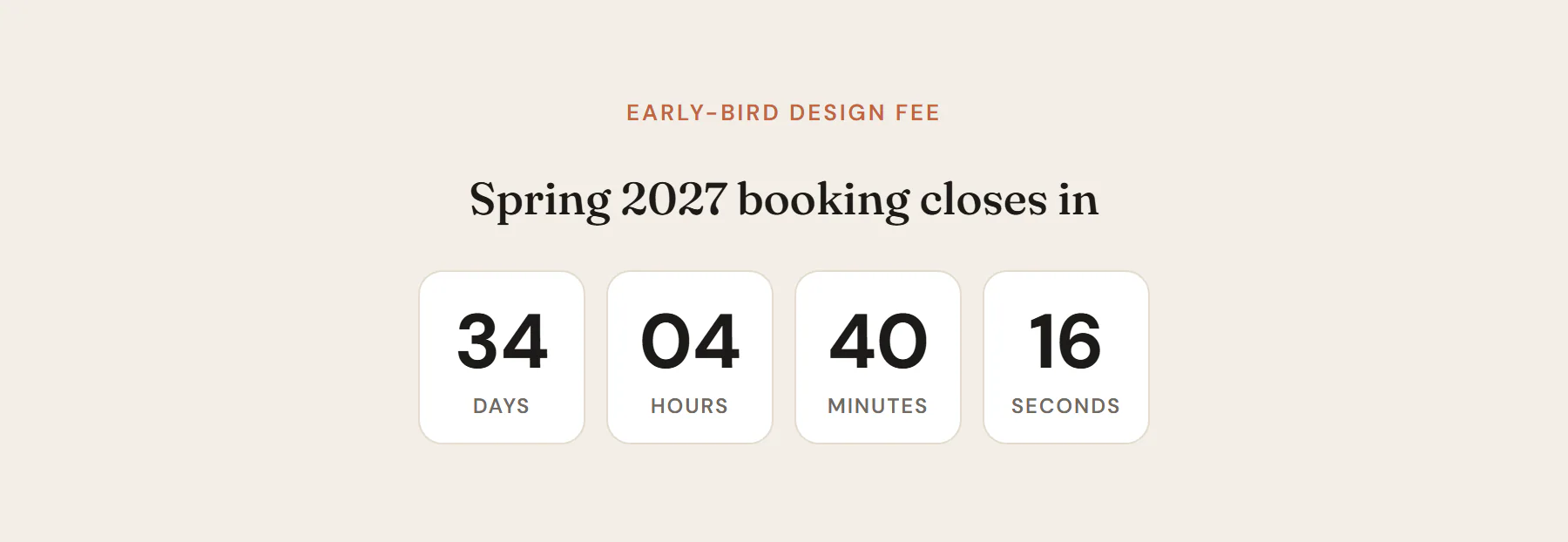
Add a Countdown
Open Insert in the left panel and find Countdown in the Marketing group, or type "countdown" in the search box. Drag it onto the canvas, or click it to add it next to the selected element. See Add elements.
A new countdown ends one week from now. Change the date under Timer.
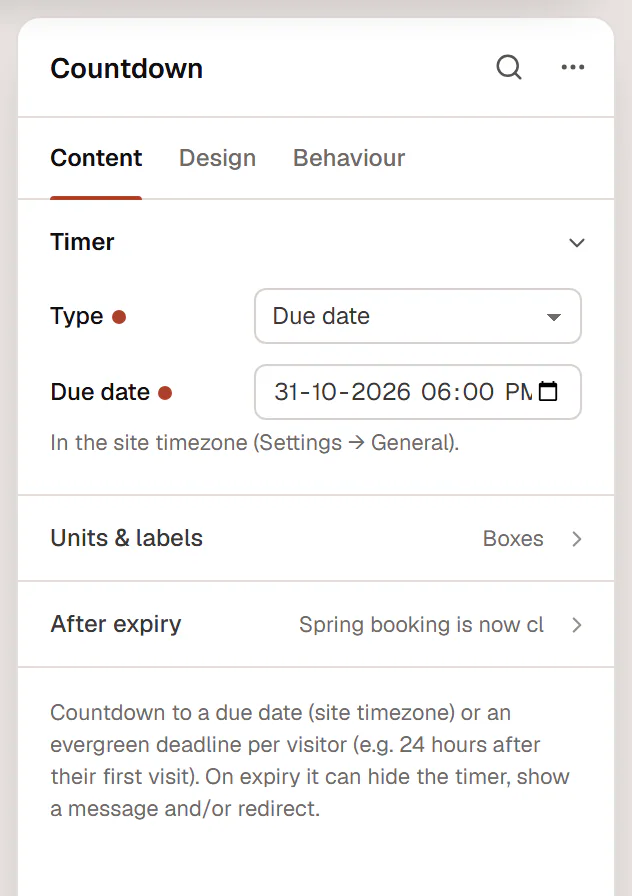
Count down to a date
- Leave Type on Due date.
- Pick the date and time in Due date. The time is in your site's time zone, set in Settings → General in WordPress.
Everyone sees the same deadline. The page shows the correct remaining time as soon as it loads, and the digits keep ticking in the browser.
Give every visitor their own deadline
An evergreen countdown starts when a visitor first sees it, for example "this offer ends 24 hours after your first visit".
- Set Type to Evergreen (per visitor).
- Set the length with Hours and Minutes.
- Turn on Restart when finished if a new period should start once the time is up, instead of expiring.
The deadline is remembered in the visitor's browser. Someone who clears their browser data, or visits on another device, starts a new period. In the editor, an evergreen countdown always shows a fresh period.
Choose what happens at the end
Under After expiry, pick one or more Actions:
- Hide the timer removes the digits.
- Show a message shows the text from Message, such as "This offer has ended."
- Redirect sends the visitor to the Redirect URL. This never happens in the editor.
Content tab settings
| Setting | What it does |
|---|---|
| Type | Due date counts down to the same moment for everyone. Evergreen (per visitor) gives each visitor their own deadline. Default: Due date. |
| Due date | The date and time the countdown ends, in the site time zone. Shown for Due date. |
| Hours | Length of an evergreen period in hours (0–8760). Default: 24. Shown for Evergreen. |
| Minutes | Extra minutes (0–59). Default: 0. Shown for Evergreen. |
| Restart when finished | Starts a new period for the visitor instead of expiring. Off by default. Shown for Evergreen. |
| Setting | What it does |
|---|---|
| View | Boxes (each unit in a box), Plain (no boxes) or Inline (label beside digits). Default: Boxes. |
| Show Days, Show Hours, Show Minutes, Show Seconds | Turn each unit on or off. All on by default. |
| Show labels | Shows the unit names under or beside the digits. On by default. |
| Days label, Hours label, Minutes label, Seconds label | The text of each unit name, for example to translate it. Shown when Show labels and that unit are on. |
| Separator | A character between the units, such as ":". Leave it empty for none. |
| Setting | What it does |
|---|---|
| Actions | Any of Hide the timer, Show a message and Redirect. Default: Show a message. |
| Message | The text shown when time is up. Bold, italic, links and line breaks are allowed. Default: "This offer has ended." |
| Redirect URL | The page to open when time is up, used when Redirect is selected. Never redirects inside the editor. |
Design tab settings
| Section | Settings |
|---|---|
| Layout | Alignment (Left, Center, Right or Full width), Space between units, Unit min width, Unit padding, Unit background, Unit border, Unit radius, Unit shadow. |
| Digits | Typography, Color. |
| Labels | Typography, Color, Spacing. Shown when Show labels is on. |
| Separator | Color, Size. Shown when there is a separator. |
| Expiry message | Typography, Color, Spacing above. |
The Design tab also has the sections every element shares: Spacing & position, Background & border and Mask. See Spacing, size & position.
Behaviour tab
The Behaviour tab has the settings every element shares: anchor and classes, entrance animations, motion effects, visibility per device, display conditions and interactions. See Display conditions.
Tips
- Screen readers do not announce every second. They get a sentence with the time left, to the minute, instead of the ticking digits.
- Pair a due-date countdown with a display condition on Date to hide the whole section after the deadline.
- To show a countdown in a popup, add it to a popup template. See Create a popup.