Blockquote
A highlighted quotation with its author and source.
The Blockquote widget sets a quotation apart from the text around it, with the author's name and an optional source. Use it for a line from a founder, a quote from a press article or a key sentence you want readers to notice. For customer reviews with a photo and stars, use Testimonial.
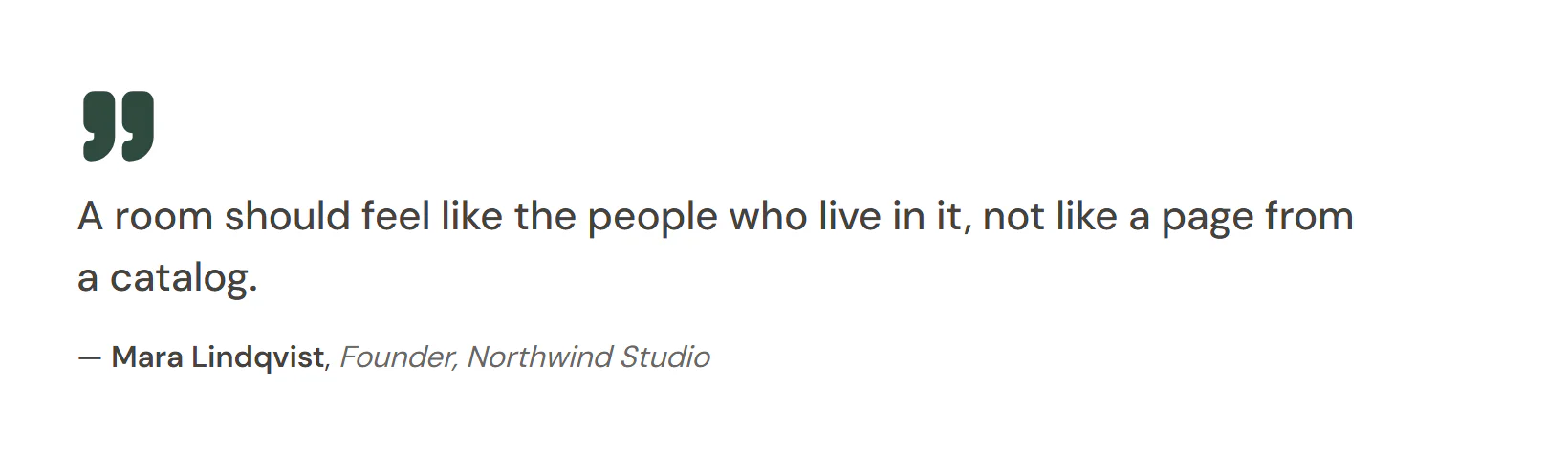
Add a blockquote
Insert it
Open Insert in the left panel, find Blockquote under Basic (or type
blockquotein Search widgets) and click it or drag it onto the canvas.Write the quote
Type the Quote, the Author and, if you like, a Source such as a book or article title. Add a Source URL to link the source.
Pick a style
Choose Side border, Quotation mark, Boxed or Plain in Style, and set the Accent color on the Design tab.
Settings
Settings marked Per device can differ on desktop, tablet and mobile (see Responsive editing). Fields that support dynamic tags can show data such as a custom field (see Dynamic tags).
Content tab
| Setting | What it does |
|---|---|
| Quote | The quoted text. Supports dynamic tags. |
| Author | Name of the person quoted. Supports dynamic tags. |
| Source | Where the quote comes from, such as a book, article or talk title. Supports dynamic tags. |
| Source URL | A link to the source. It links the source text and is saved as the quote’s cite attribute. Supports dynamic tags. |
| Style | The look: a colored line on the side, a large quotation mark, a tinted box, or plain text. Options: Side border, Quotation mark, Boxed, Plain. Default: Side border. |
| Quotation mark icon | Icon used as the quotation mark. Shown when Style is Quotation mark or Boxed. |
| Dash before author | Puts a dash (—) before the author name. On by default. |
| Alignment | Aligns the blockquote. Options: Left, Center, Right. Per device. |
Design tab
| Setting | What it does |
|---|---|
| Background | Background of the quote box. |
| Padding | Space inside the quote box. Per device. |
| Border radius | Rounds the corners of the quote box. Per device. |
| Shadow | Shadow of the quote box. |
| Accent color | Color of the side line, the quotation mark and the box tint. |
| Side border width | Width of the side line. Shown when Style is Side border. Per device. |
| Side border spacing | Space between the side line and the text. Shown when Style is Side border. Per device. |
This section shows when Style is Quotation mark or Boxed.
| Setting | What it does |
|---|---|
| Color | Color of the quotation mark. |
| Size | Size of the quotation mark. Per device. |
| Spacing | Space between the quotation mark and the text. Per device. |
| Opacity | Opacity of the quotation mark, from 0 to 1. |
| Setting | What it does |
|---|---|
| Typography | Text style or font, size, weight and spacing of the quote. |
| Color | Color of the quote. |
| Text shadow | Shadow behind the quote text. |
| Setting | What it does |
|---|---|
| Author typography | Text style or font, size, weight and spacing of the author name. |
| Author color | Color of the author. |
| Source typography | Text style or font, size, weight and spacing of the source. |
| Source color | Color of the source. |
| Spacing | Space between the quote and the author line. Per device. |
Every element also has these sections at the end of the Design tab.
| Section | What it does |
|---|---|
| Spacing & position | Margin, padding, width, alignment in its container, order, position (relative, absolute, fixed), offsets, z-index and global classes. See Spacing, size & position. |
| Background & border | Background, border, border radius, box shadow, overflow and opacity of the whole element. See Colors & backgrounds and Borders & shadows. |
| Mask | Crops the element to a shape (circle, arch, blob, star…) or your own SVG or PNG. See Shape dividers & masks. |
Behaviour tab
The Behaviour tab is the same for every element.
| Section | What it does |
|---|---|
| Anchor & classes | An Anchor ID for #links and your own CSS classes. |
| Animations | Entrance, scroll, hover and loop animations from presets or your own timeline. See Motion & effects. |
| Motion & effects | A simple entrance animation, transforms (also on hover), CSS and backdrop filters, and sticky positioning. |
| Scroll & mouse effects | Movement, rotation, scale, fade and blur while the page scrolls, and pointer effects (follow the pointer, 3D tilt). |
| Visibility | Hide the element on desktop, tablet or mobile, or in dark or light mode. See Visibility. |
| Conditions | Show the element only when rules match, such as logged-in visitors, a date range or a URL parameter. See Display conditions. |
| Interactions | Show, hide or change other elements when this one is clicked, hovered or scrolled into view. See Interactions. |
| Attributes | Custom HTML attributes for this element. See Anchor, classes & attributes. |
Tips
- Real quotes only. The widget outputs a proper
<blockquote>with the author and source in a caption (the source in<cite>), which tells search engines and screen readers it is a quotation. Use a Heading or Text widget for decorative large text that is not a quote. - Source link. The Source URL is also saved as the quotation's
citeattribute. - Text reveal. Behaviour → Motion & effects → Text reveal can reveal the quote word by word or line by line when it scrolls into view.