Submissions
Read, filter, mark, export and delete form submissions.
On this page
Every message sent through an Urmi form is saved in Urmi → Submissions (unless you turned off Save submissions for that form). There you read the answers, mark messages as read or spam, find them by form, page or text, export them to a spreadsheet and delete the ones you no longer need. A number next to Submissions in the menu shows how many are unread.

Read submissions
- The tabs All, Unread, Read and Spam show how many submissions each holds. Unread ones are in bold with a dot.
- Narrow the list with All forms (by Form name), All pages (where the form was sent from) and Search submissions….
- Click a submission to open it. Opening an unread submission marks it as read.
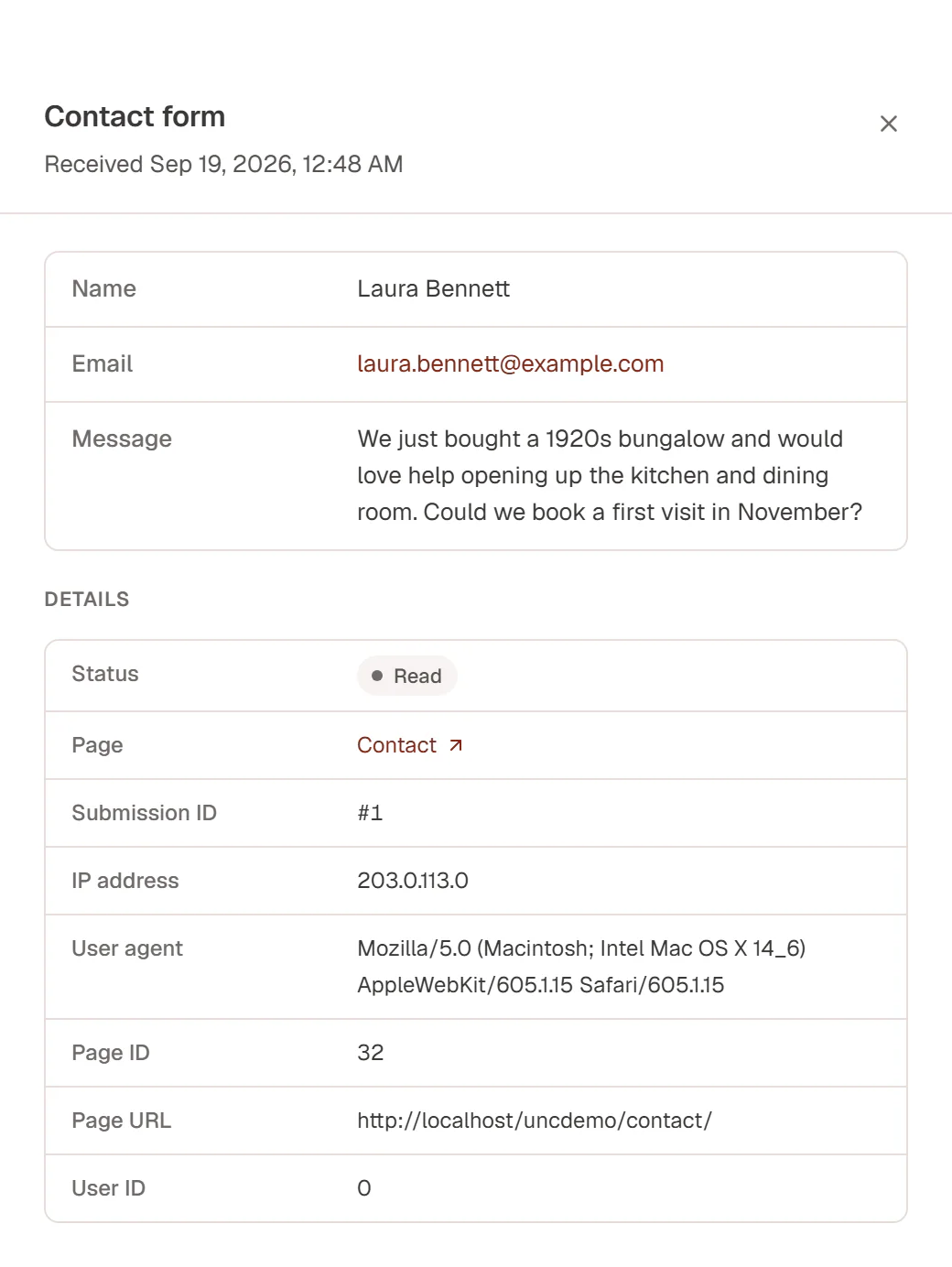
The panel shows every answer with its label. Email addresses and links can be clicked, and an uploaded file's name is a download link for administrators. Under Details you see the Status, the Page it was sent from, the Submission ID, the visitor's IP address (anonymized: the last part is replaced by zeros), their browser (User agent), and the address of the page.
At the bottom of the panel: Mark read / Mark unread, Spam (or Not spam in the Spam tab) and, for administrators, Delete.
Work on several at once
Tick the checkboxes of several submissions, or the box in the header to select the whole page. A bar appears with Mark read, Mark unread, Spam (Not spam in the Spam tab), Delete (administrators) and Clear selection.
Deleting asks for confirmation and removes the data permanently, including uploaded files. Export first if you need a copy.
Export to CSV
Administrators can click Export CSV to download the submissions as a spreadsheet file (submissions-2026-09-28.csv). The export follows the current tab, filters and search, so you can export only one form or only unread messages. It holds up to the 5,000 latest matching submissions, with one column per field plus the date (UTC), status, form, page and the details. A file field adds a second column, (download link), with the address an administrator can open to download the file (the files themselves are never public).
Spam
Submissions caught by the built-in spam checks go to the Spam tab instead of Unread, without emails or other actions. Mark a real message as Not spam to move it back. Spam is deleted automatically after 30 days. See Spam protection.
Delete old submissions automatically
To keep submissions only as long as you need them, go to Urmi → Settings → Forms and set Stored submissions → Delete submissions after a number of days. Once a day, older submissions and their uploaded files are deleted. 0 (the default) keeps them until you delete them yourself.

Removing Urmi with Remove all data on uninstall turned on also deletes all submissions. See Advanced settings.
Who can see submissions
Editors and administrators can read submissions and mark them read, unread or spam. Only administrators can delete, export and download uploaded files, because submissions hold personal data. For requests from visitors who want a copy of their data or want it deleted, see Privacy.
An AI assistant connected over MCP with the Site permission can list recent submissions too, for example "summarise this week's enquiries".