Multi-step forms
Split a long form into steps with a progress bar.
A long form feels shorter when it is split into steps: first the visitor's details, then their project, then the timing. In the Form widget you split a form by adding — Step break — rows to its field list. Visitors move between steps with Next and Back buttons, see their progress, and cannot move on while a required field of the current step is empty.
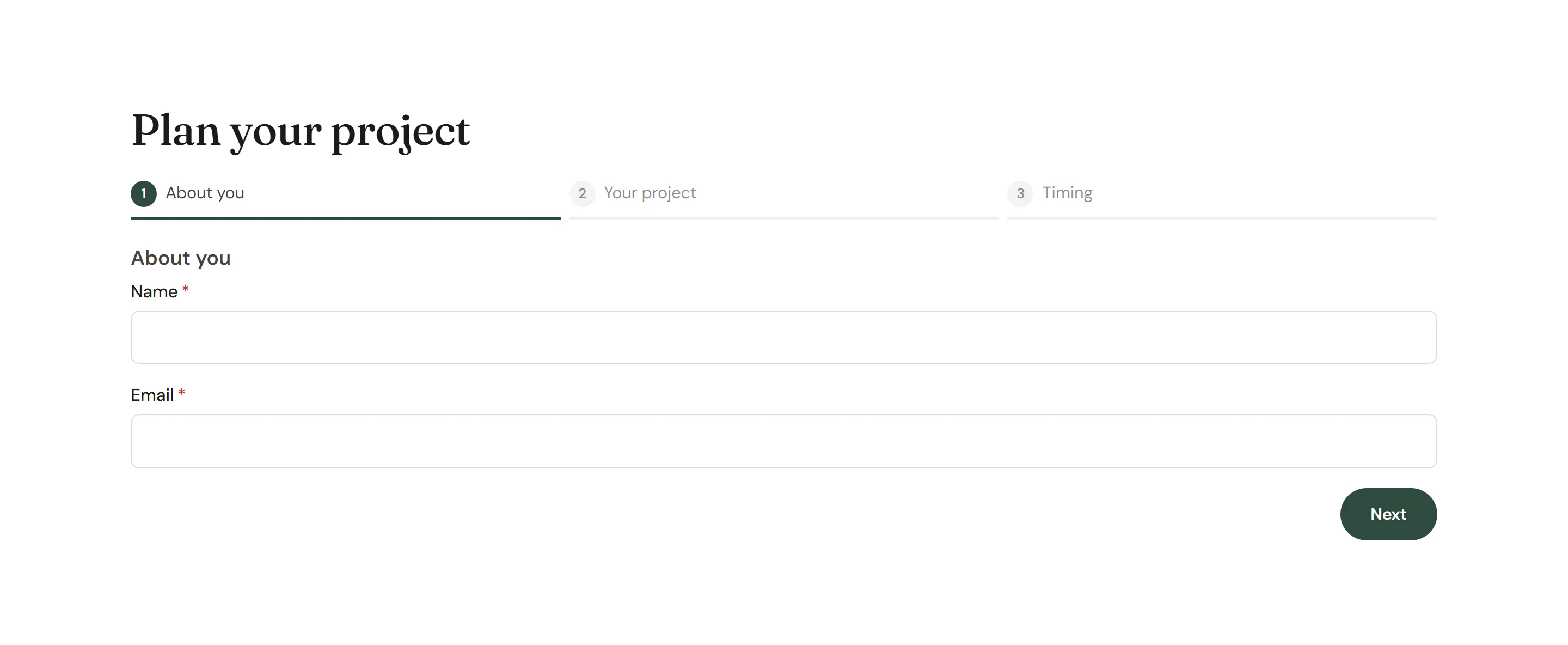
Split a form into steps
Add a step break
Select the Form widget. In Content → Form fields, click Add item and set the new row's Type to — Step break —.
Name the step
Type the step's name in Label, for example "Your project". It is shown as the step's title and in the progress indicator.
Place it
Drag the step break above the first field of that step. Every field after a step break, up to the next one, belongs to that step.
Name the first step too
To give the first step a title, start the list with a step break as well. Without it, the first step has no visible title.
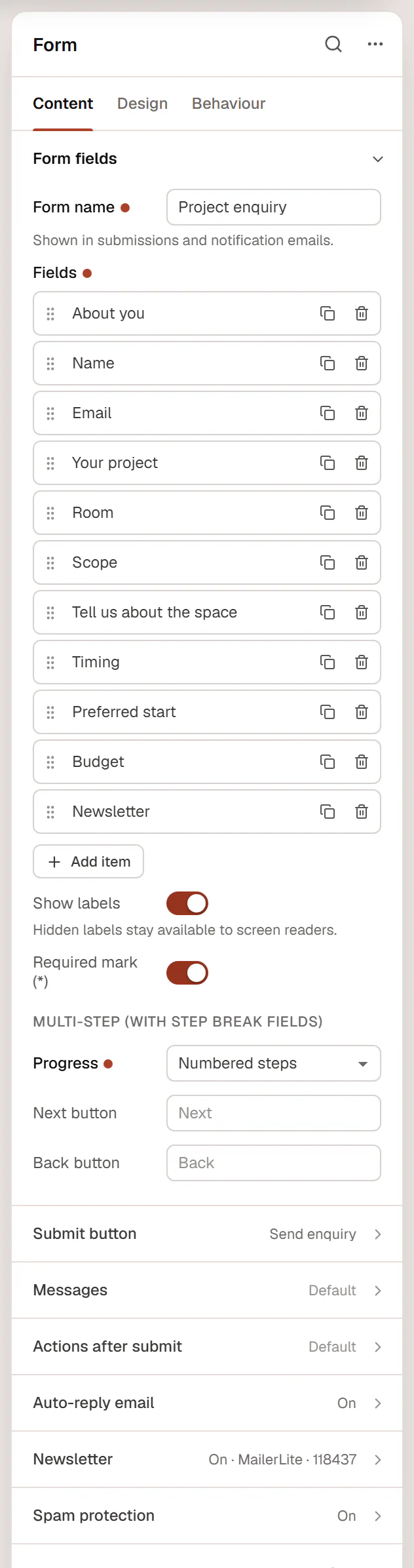
Multi-step settings
These settings are under Multi-step (with Step break fields) in the Form fields section:
| Setting | What it does |
|---|---|
| Progress | Bar with step name (a progress bar with "Step 1 of 3 · About you"), Numbered steps (a row of numbered step names) or None. |
| Next button | Label of the button that goes to the next step ("Next" by default). |
| Back button | Label of the button that goes back ("Back" by default). |
The last step shows the submit button instead of Next. The submit button's text and style are set in Submit button, as for any form.
How it works for visitors
- Next checks the fields of the current step first. If one is invalid, it is highlighted and gets the focus.
- Pressing Enter in an earlier step moves to the next step instead of sending the form.
- If the server finds a problem after sending, the form jumps back to the step with the first invalid field.
- Conditional fields (Show only if field) work across steps: a field can depend on an answer given in an earlier step.
- Without JavaScript, all steps show one after another as a single long form, and it still works.