Fonts & text styles
Choose heading and body fonts and define text styles from display to small print.
On this page
Typography in the Design System has two parts: the fonts of your site (one for headings, one for body text) and the text styles, named combinations of font, size, weight and spacing such as H1, Body or Eyebrow. Elements use a text style instead of their own sizes, so your type stays consistent and a change in one place updates every page.
Choose the heading and body fonts
- In the editor, click Styles in the left panel. You land on the Colors tab.
- Scroll to Fonts at the bottom.
- Pick a font for headings and one for body text in the two font pickers there.
- Click Save Design System.
The font picker lists Site fonts, Custom fonts (fonts you uploaded, and Adobe Fonts) and more than a thousand Google Fonts. Type in the search box to find one. Leave a slot empty to use your theme's font.
The heading font is used by the Display and H1–H6 text styles, the body font by the others, unless a text style picks its own family. Weights 400 to 700 are loaded for these two fonts.
Where Google Fonts are loaded from (Google's servers, your own server or not at all) is set in Urmi → Settings → General → Font delivery. See General settings and Performance.
The text styles
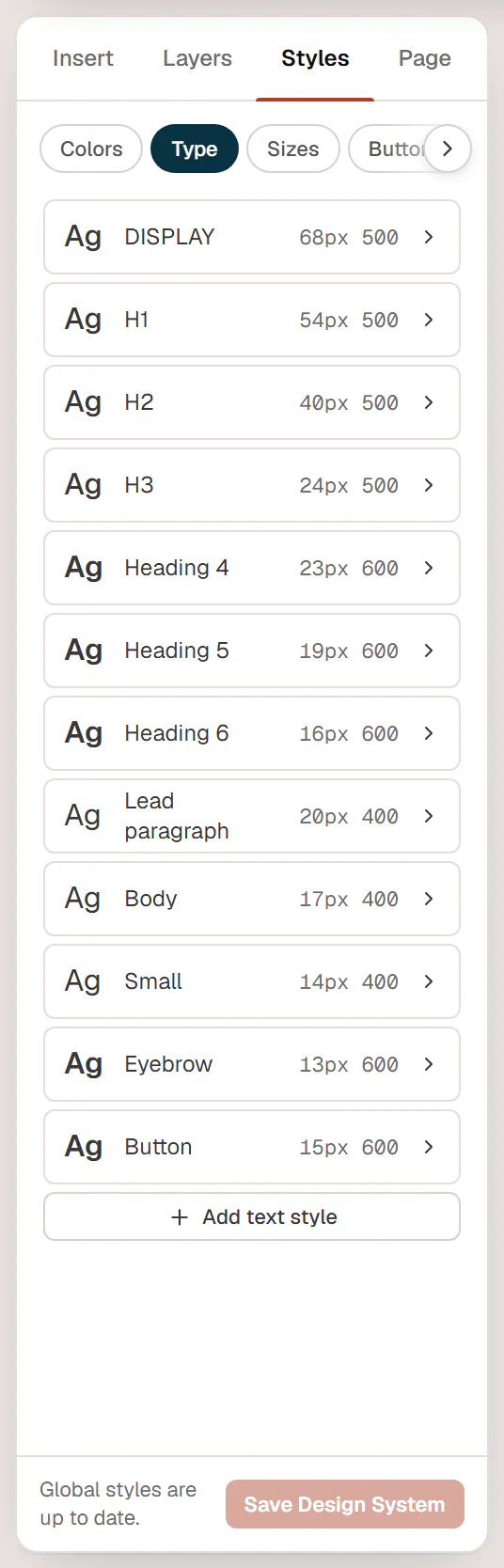
Click the Type tab to see the text styles. Each row shows a preview, the name, and the desktop size and weight.
| Style | Used for | Default sizes (desktop / tablet / mobile) |
|---|---|---|
| Display | Extra-large hero headlines | 72 / 56 / 42 px |
| Heading 1–Heading 6 | Headings h1 to h6 | from 56 / 44 / 34 px (H1) down to 16 / 16 / 15 px (H6) |
| Lead paragraph | Introductions under a heading | 20 / 19 / 18 px |
| Body | Normal text | 17 / 16 / 16 px |
| Small | Captions, notes, fine print | 14 px |
| Eyebrow | Short uppercase labels above headings | 13 / 13 / 12 px |
| Button | Button labels | 15 px |
These are the defaults of a new site; a starter site or your own changes replace them.
Edit a text style
Open the style
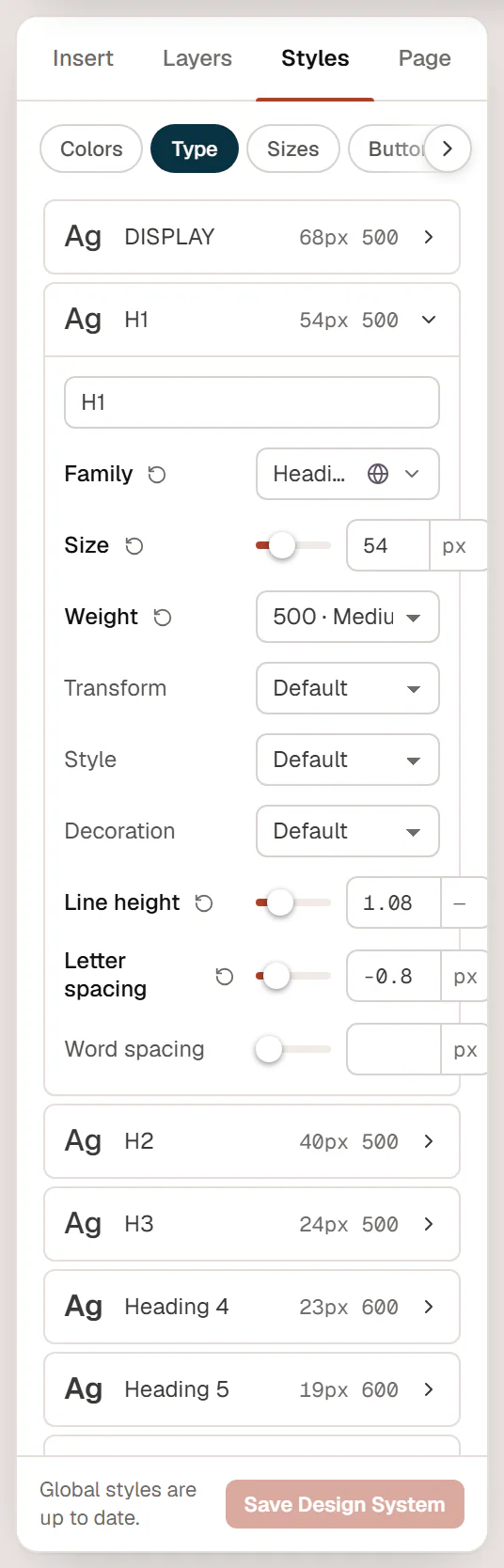
In Styles → Type, click a style to open it.
Change its settings
Rename it, and set Family, Size, Weight, Transform (for example UPPERCASE), Style (italic), Decoration, Line height and Letter spacing. Leave Family empty to use the heading or body font.
Set tablet and mobile sizes
Switch to Tablet or Mobile in the top bar and change Size, Line height or Letter spacing again. A small device icon next to the field shows which device you are editing. See Responsive editing.
Save
Click Save Design System.
For type that scales smoothly with the screen, switch the unit of Size to custom and type a CSS value such as clamp(2rem, 5vw, 4rem).
Click Add text style at the bottom of the list to create your own, for example a "Quote" or "Price" style. It starts at 18 px; rename it and set it up like the others.
Use text styles on elements
In the Design tab of a heading, text or button, open Typography. The tiles at the top are your text styles: click one to use it. Any field you set yourself below the tiles, such as a different weight, overrides the style for that element only.
With Apply to the whole site on (the default), a heading without a text style of its own looks like the style of its level: an h2 looks like Heading 2. Pick another tile to keep the right heading level for the page outline and still change the look, for example an h2 that looks like Heading 4. See Typography.
Apply the styles to the whole site
With Apply to the whole site on (Styles → Theme, on by default), the Body style is used for all text on the site and Heading 1–6 for all h1–h6 headings, also on pages and posts that are not built with Urmi. Turn it off if your theme should keep its own typography outside Urmi content. See Lightbox & site behaviour.