Connect ChatGPT
Add your site to ChatGPT as a connector in developer mode.
ChatGPT connects to your site as a custom connector. You add it once in developer mode, sign in to your site and approve the permissions. There is no key to copy.
Before you start
- The MCP server must be on. It is off until an administrator turns it on. See Turn on the MCP server.
- Your site must be public and use HTTPS. ChatGPT connects from its own servers, so it cannot reach a site that only runs on your computer.
- Your ChatGPT plan must include developer mode. Custom connectors are added there.
- You need a WordPress account that may use AI. By default only administrators can. See Server settings.
Add the connector
Copy the Server URL
Go to Urmi → AI & MCP. Click Copy next to Server URL.
Turn on developer mode
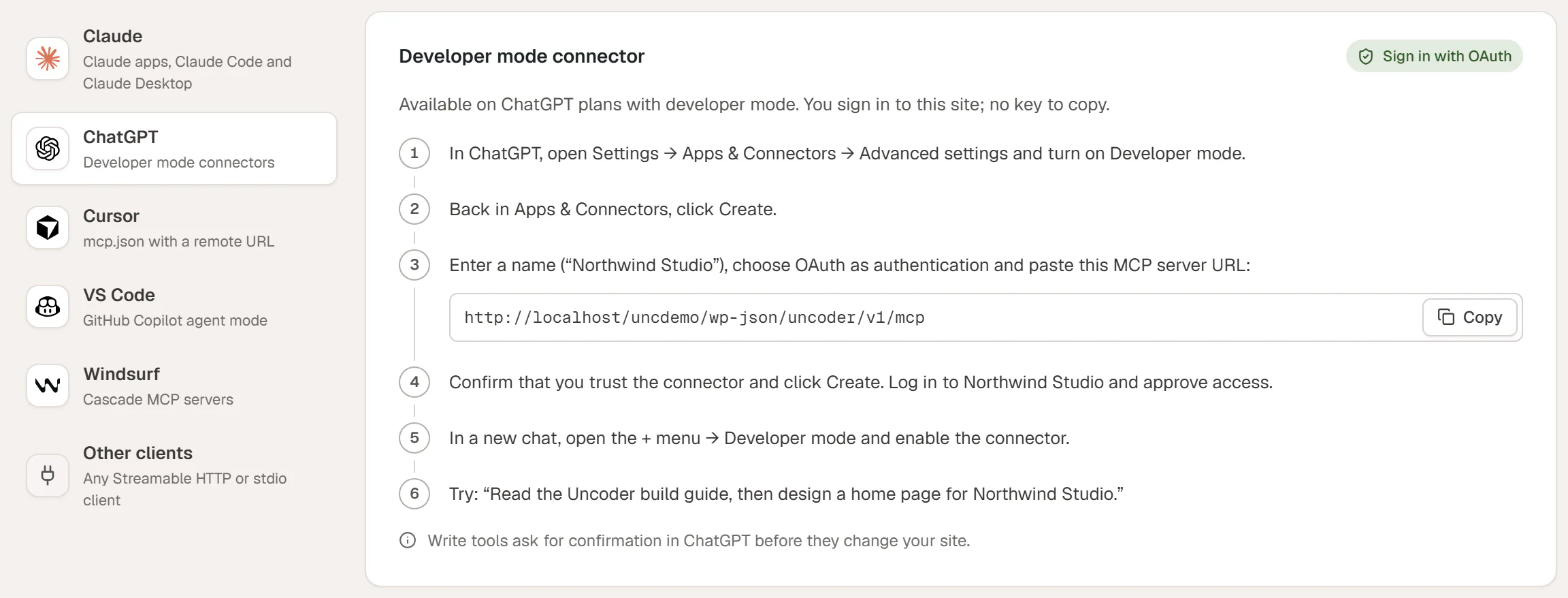
In ChatGPT, open Settings → Apps & Connectors → Advanced settings and turn on Developer mode.
Create the connector
Back in Apps & Connectors, click Create. Enter your site's name, choose OAuth as the authentication and paste the MCP server URL.
Approve access on your site
Confirm that you trust the connector and click Create. Your site opens a sign-in window: log in, check the permissions and click Approve.
Use it in a chat
In a new chat, open the + menu, choose Developer mode and enable your site's connector.
Try it
Ask something like: "Read the Urmi build guide, then design a home page for my site."
The permissions screen is the same for every app that signs in. Read is always included, Content and Design are checked, and Site is unchecked unless you tick it. See The approval screen.
After you approve, ChatGPT appears under AI & MCP → Connected apps.
Confirmations in ChatGPT
Tools that change your site ask for your confirmation in ChatGPT before they run. Read what ChatGPT is about to do, then allow or deny it. Urmi marks each tool as read-only or as making changes, so ChatGPT knows which ones need a confirmation.
This is separate from Urmi's own safety net: every change is still logged in Activity, and changes to pages, templates and the Design System can be undone there.
If it does not connect
- "This site is not reachable from the internet" on the Connect a client tab means Urmi detected a local address. ChatGPT cannot reach it. Put the site online, or use a tunnel service for testing.
- The sign-in window shows "Can't connect this application": read the message under it. The most common one is that your account's role is not allowed to use AI. An administrator can allow it in Server settings.
- Dynamic client registration must be on in Server settings → Connections. It lets new connectors register themselves. It is on by default.
More fixes: Troubleshooting.