History, revisions & autosave
Undo changes, restore saved versions and understand how autosave protects your work.
On this page
Every change you make in the editor can be undone, and every time you save, WordPress keeps a version of the page you can go back to. The History panel shows both.
Undo and redo
- Press Ctrl+Z to undo and Ctrl+Shift+Z (or Ctrl+Y) to redo. On a Mac, use ⌘.
- Or click the arrows in the top bar.
The editor briefly shows what was undone, for example Undo: Delete Heading. Quick changes to the same setting, such as dragging a slider, count as one step. Up to 200 steps are kept while the editor is open.
Design System changes in the Styles tab are not part of the undo history. They are saved separately with Save Design System.
Open the History panel
Open the Urmi menu in the top-left corner and choose History, or press Ctrl+K and type history. Click the back arrow to return to the previous panel.
Jump back through this session
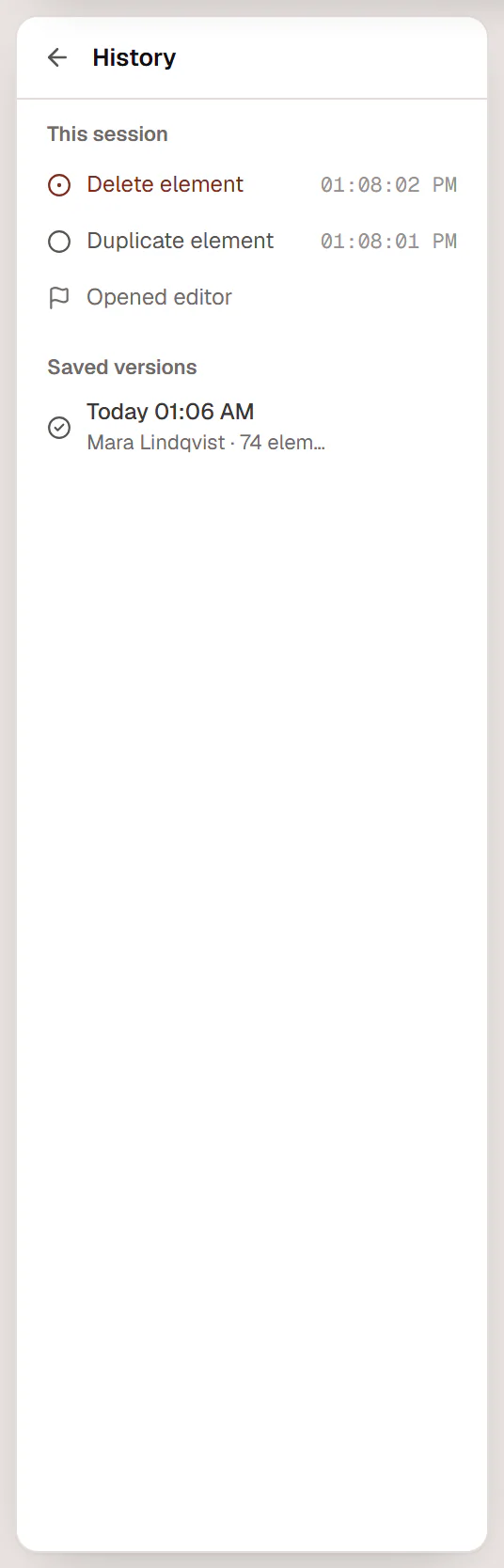
This session lists every change since you opened the editor, newest at the top, with its time. It ends with Opened editor.
- Click an earlier step to undo everything after it.
- Steps you have undone stay in the list, marked with a redo arrow. Click one to redo up to that point.
The list starts again each time you open the editor. Before your first change it says No changes yet. Every edit appears here and can be undone.
Restore a saved version
Each time you save (Save draft, Publish or Update), WordPress stores a version of the page. Saved versions lists the latest 30, with the date, the author and the number of elements. The newest is marked latest.
Preview the version
Hover a version and click Preview in a new tab to see how the page looked.
Restore it
Click Restore (undoable). The page content in the editor goes back to that version, and the editor confirms Restored the version from ….
Save to keep it
Restoring changes only the editor. Click Update (or Publish) to make the restored version live. Changed your mind? Click Undo in the message, or press Ctrl+Z.
Restoring brings back the elements of the page. The title and the page settings stay as they are now.
If the list is empty, it says No saved versions yet. Each time you save, WordPress keeps a version you can come back to. Saved versions need WordPress revisions, which are on for pages and posts unless your site or host turned them off.
Autosave
While you have unsaved changes, the editor stores a private backup every 60 seconds. It never touches your live page or your saved versions. The backup is used when you choose Preview in new tab, so you see your latest changes before you save.
Your changes become part of the page only when you save. The top bar shows Unsaved changes until then, and your browser warns you if you try to leave the editor with unsaved changes.
Autosave is not a replacement for saving. If you close the browser and confirm the warning, unsaved changes are lost. Press Ctrl+S often; on a published page it updates the live page.
When someone else edits the same page
- If another user opens the same page, you see a message such as Jonah is also editing this page. Nothing is blocked, so agree who saves: the last save wins.
- Changes made by a connected AI assistant appear in your open editor automatically, with an Undo button. If you have unsaved changes at that moment, the editor asks whether to load the new version first. See AI & MCP.