Saved sections
Save a section once, reuse it anywhere, and embed it with a widget or shortcode.
A saved section is a piece of design you want on several pages: a call to action, a testimonials band, a newsletter signup, opening hours. Save it once, then either insert a copy of it on any page, or embed it so that one edit updates every page that shows it. Saved sections are Section templates, listed in Urmi → Theme Builder → Saved sections.
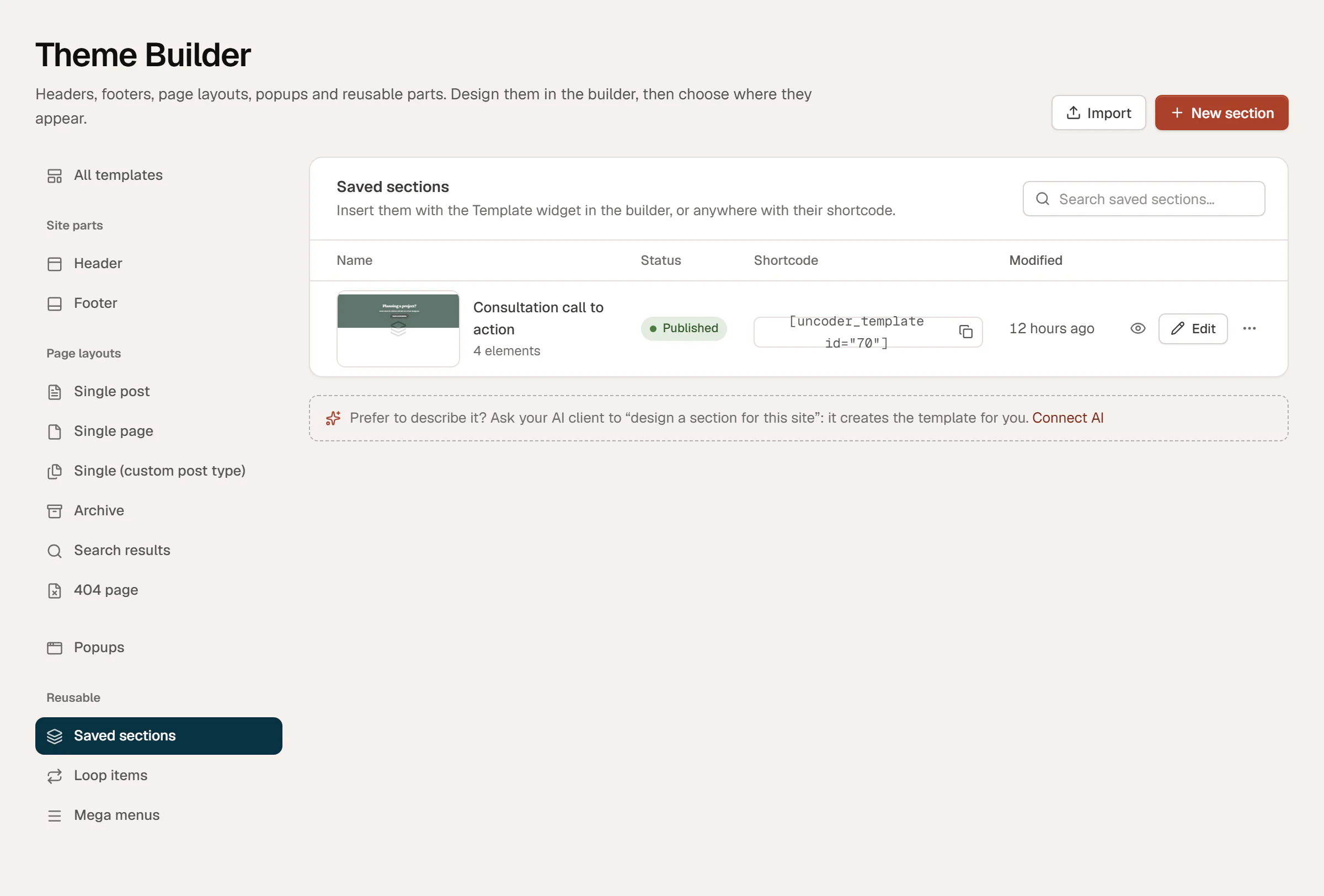
Save a section
Right-click the element
In the editor, right-click the container (or any element) you want to reuse and choose Save as template.
Name it
Type a Template name, for example "Project enquiry", and click Save.
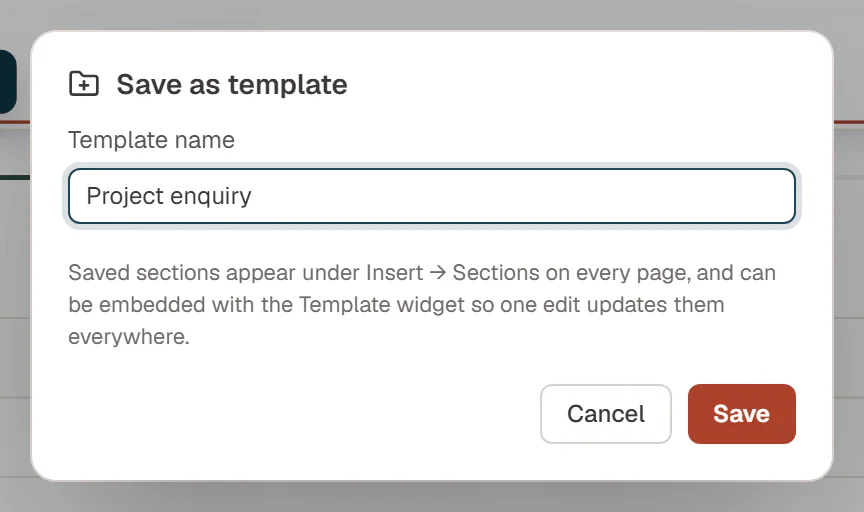
The section is saved and published right away, with everything inside it. You can also create one from scratch: in the Theme Builder, open Saved sections and click New section.
Reuse a section
There are three ways to put a saved section on a page:
| Way | How | Later changes to the section |
|---|---|---|
| Insert a copy | In the editor, open Insert → Sections, scroll to Saved sections and click + next to it. | Not applied. The copy is independent: edit it freely on this page. |
| Embed it with the Template widget | Drag a Template widget onto the page and pick the section in Section template. | Applied everywhere. Edit the section once and every page that embeds it updates. |
| Embed it with a shortcode | Copy the section's shortcode from the Theme Builder, such as [urmi_template id="70"], and paste it where WordPress accepts shortcodes: a Shortcode block, a classic editor page, a widget area. | Applied everywhere. |
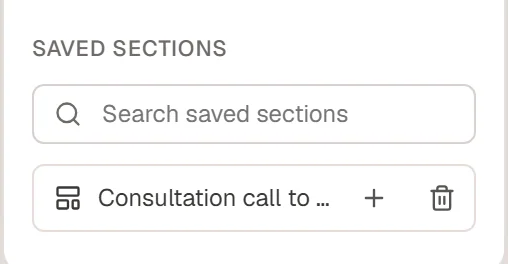
Inserted copies go after the selected section, or at the end of the page. An embedded section shows in the editor with its name and an Edit template link above it; click the link to change the section itself.
Want each page to change a few texts or images of an embedded section, such as the title of a call to action? Turn the section into a component with properties. The Template widget then shows Content of this copy for each placement. See Components.
Edit or delete a saved section
- Edit: in the Theme Builder, click Edit on the section, or use Edit template on an embedded copy. Changes show on every page that embeds it once you click Update.
- Delete: click the trash icon next to it in Insert → Sections, or choose Move to trash in the Theme Builder. Pages that embed the section stop showing it; inserted copies stay.
Editors can use and manage saved sections too, even though the rest of the Theme Builder is for administrators.