Display conditions
Show or hide an element based on the visitor, date, page, device and many other rules.
On this page
Display conditions decide whether an element is part of the page at all. Show a "Welcome back" line only to logged-in visitors, a banner only during a sale, a block only to people who arrive from a campaign link, or a badge only on posts with a certain category. Conditions are checked on the server when the page is built: a hidden element is not in the page's code, not merely hidden with CSS.

To choose where a whole template (a header, a footer, a popup, a single post layout) appears, use template conditions instead. To hide an element on phones or tablets only, use Visibility.
Add a condition
Select the element
Select any element: a widget or a whole container.
Open Conditions
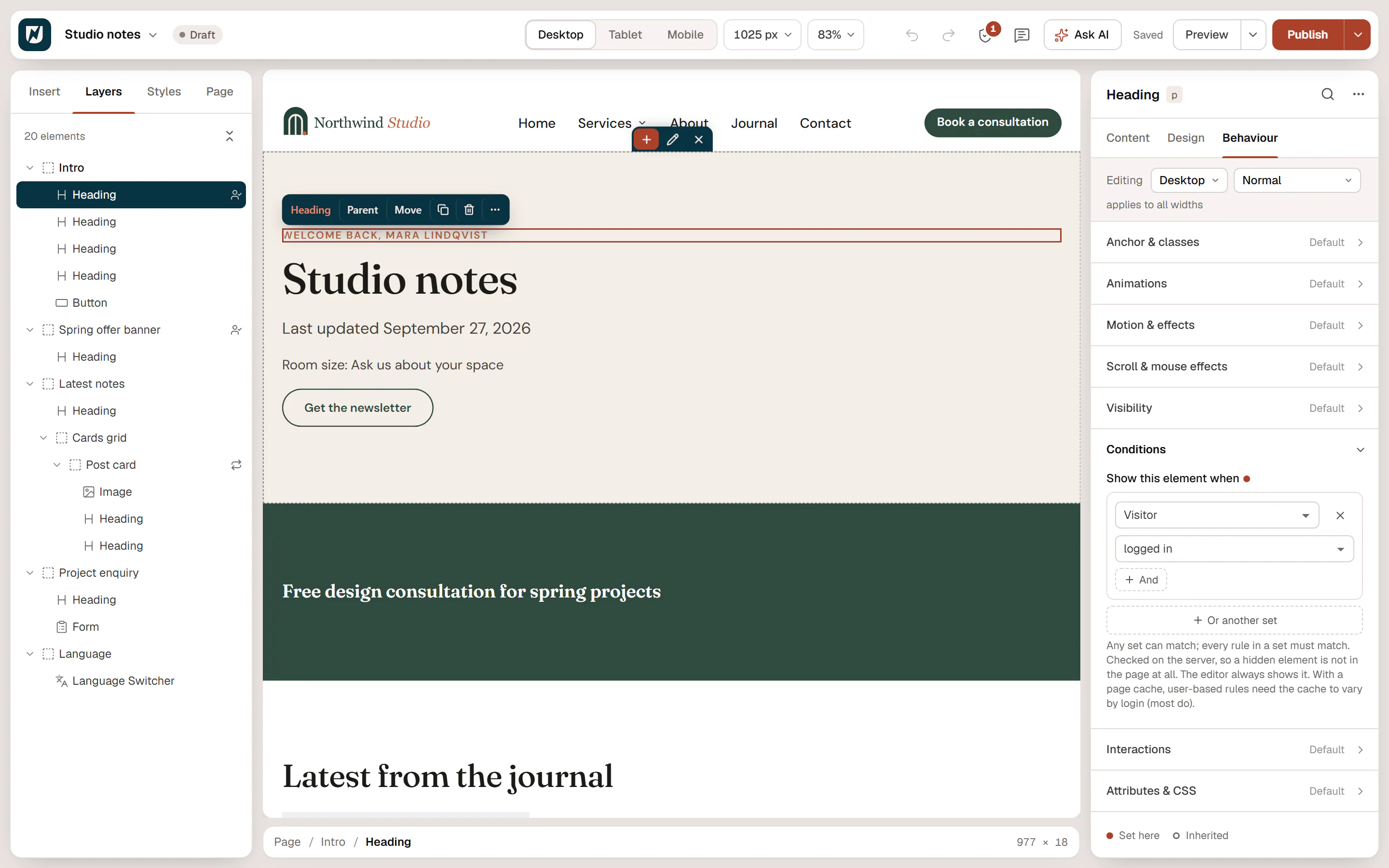
In the inspector, open the Behaviour tab and the Conditions section.
Add a rule
Click Add a condition. Choose the rule in the first list (for example Visitor or Date), then its operator and value.
Combine rules
Click And to add a rule that must also be true. Click Or another set to add a second, separate group of rules.
The element shows when any set matches, and a set matches when every rule in it is true. In the example above, the banner shows to visitors who arrive with ?utm_campaign=spring in the address, or to everyone between 1 and 24 December.
Remove a rule with the × next to it. When no rule is left, the element always shows.
The editor canvas always shows every element, whatever its conditions, so you can still edit it. Check the result with Preview, or in a private window for visitor rules. In Layers, elements with conditions are marked with a person icon.
The visitor
| Rule | Operators | Value |
|---|---|---|
| Visitor | — | logged in or logged out. |
| User role | is, is not | One or more roles (Administrator, Editor, Subscriber…). is matches visitors who have one of them; visitors who are not logged in never do. |
| Browser | is, is not | Chrome, Safari, Firefox, Edge, Opera, Samsung Internet. |
| Operating system | is, is not | Windows, macOS, iOS, Android, Linux. |
| Language | is, is not | The language being shown. With WPML or Polylang you pick from your languages; otherwise type codes such as en, de (the site language). |
Date and time
All dates and times use the time zone of your site (Settings → General in WordPress).
| Rule | Operators | Value |
|---|---|---|
| Date | from, until, is | A date, with an optional time. A date alone counts whole days; with a time, it is exact to the minute. is matches that one day. |
| Time of day | from, until | A time such as 09:00. |
| Day of the week | is, is not | One or more days, Monday to Sunday (a new rule starts with Monday to Friday). |
For a limited offer, put Date from and Date until in the same set. For opening hours, combine Time of day from 09:00, Time of day until 17:00 and Day of the week is Mon–Fri in one set.
The page and its content
These rules look at the page being viewed. Inside a loop item or a query loop, the content rules look at each item of the loop instead, so you can, for example, show a badge only on some cards.
| Rule | Operators | Value |
|---|---|---|
| Page | is, is not | A page or post, picked from a list. Compares with the page the visitor is on. |
| Kind of page | is, is not | Home page, Blog, Single post / page, Category, Tag, Other taxonomy, Author, Date archive, Search results, Post type archive, 404. |
| Post type | is, is not | One or more post types (Posts, Pages, a custom type). |
| Category / tag / term | is, is not | Choose the Taxonomy, then type slugs or IDs separated by commas. Matches posts that have one of the terms, and the archive pages of those terms. |
| Author | is, is not | Usernames or user IDs. Matches posts by these authors, and their author archives. |
| Parent page | is, is not, has a parent, is top level | A parent page picked from a list. |
| Featured image | is set, is missing | — |
| Comment count | greater than, less than, is | A number. |
| Custom field | exists, does not exist, is, is not, contains, greater than, less than | Type the field name (for example price), then the value. greater than and less than compare numbers. See Custom fields. |
| Dynamic value | is not empty, is empty, is, is not, contains, greater than, less than | Pick a dynamic tag (tags without options, such as Post excerpt or Current user name), then the value to compare with. |
The address and the visit
| Rule | Operators | Value |
|---|---|---|
| URL parameter | exists, does not exist, is, is not, contains | Type the parameter name (for example utm_source), then the value. ?utm_source=newsletter in the address is newsletter. |
| Came from (referrer) | contains, does not contain, is empty (direct visit), is not empty | Part of the address of the previous page, for example google. or instagram.com. is empty matches visitors who typed the address or used a bookmark. |
| Cookie | exists, does not exist, is, contains | Type the cookie name, then the value. |
Examples
- Members-only content: Visitor is logged in. Add a second element with Visitor is logged out that invites people to sign in.
- Campaign landing block: URL parameter
utm_campaignisspring. - Holiday notice: Date from 20 December and Date until 2 January.
- Badge on some cards: in a loop item, Category / tag / term → Categories is
renovationshows the badge only on renovation posts. - Hide an empty block: Custom field
client_quoteexists.
Caching
Because conditions are checked when the page is built, a full-page cache can serve the same version to everyone. Rules about the visitor's login or role need a cache that keeps logged-in visitors separate (most caching plugins do this by default). For rules on dates, URL parameters, cookies, the referrer or the browser, exclude the page from the cache or use a short cache time.