Multilingual sites
Build sites in several languages with WPML or Polylang.
On this page
Urmi works with the two most used translation plugins for WordPress, WPML and Polylang. You translate pages the way the plugin expects, and each translation is a full Urmi page you edit in the visual editor. Headers, footers, popups and other templates can be translated too, and visitors automatically see the version in their language. A Language Switcher widget lets visitors change language.
Urmi detects WPML or Polylang by itself; there is nothing to turn on in Urmi.
Translate a page
Create the translation
Use your translation plugin as usual. With Polylang, click the + for a language in the Pages list or in the page's Languages box. With WPML, click the + for a language in the page list or the Language box.
Open it in Urmi
The new translation starts as a copy of the original page's design, with the same sections, widgets and settings. Open it with Edit with Urmi.
Translate the content
Replace the texts, and change images, links and buttons where needed. The design is copied only once: from then on each language is edited on its own, so you can adapt a layout for one language without touching the others.
Publish
Publish the translation. Until it is published, visitors of that language see the original.
The AI writing tools in the editor can translate a text field for you: select the text and choose Translate to…. See AI writing in the editor.
Translate templates
Headers, footers, single and archive layouts, popups, saved sections, loop items and mega menus can have one version per language.
- WPML: templates are translatable automatically.
- Polylang: go to Languages → Settings → Custom post types and Taxonomies, tick Urmi Templates and save.
Templates have no list of their own in WordPress, so you translate them from the Theme Builder. When a translation plugin is active, each template in Urmi → Theme Builder shows language chips under its name:
| Chip | Meaning |
|---|---|
| The template's own language, for example EN | The language of this template. |
| Another language code, for example DE | A translation exists: click to edit it. A faded chip is a draft; the original shows for that language until it is published. |
| + with a language code | No translation yet: click to create one. It opens a copy in Urmi. |
The same actions are in the template's ⋯ menu: Translate into … creates a translation, Edit … version opens an existing one. A new translation copies the design, the display conditions and, for popups, the popup settings; after that each version is edited on its own.
What visitors see
- Every template resolves to the visitor's language: the German header on German pages, the German popup, the German version of an embedded saved section, loop item card or mega menu.
- When a template has no published translation in the visitor's language, the original is shown instead.
- The Preview of a template in the Theme Builder shows it on a page in the template's own language.
Add a language switcher
Add the Language Switcher widget to your header (it is in the Site & theme group of Insert). It lists your site's languages and links to the current page in each of them. Without WPML or Polylang, the editor shows sample languages so you can style it.
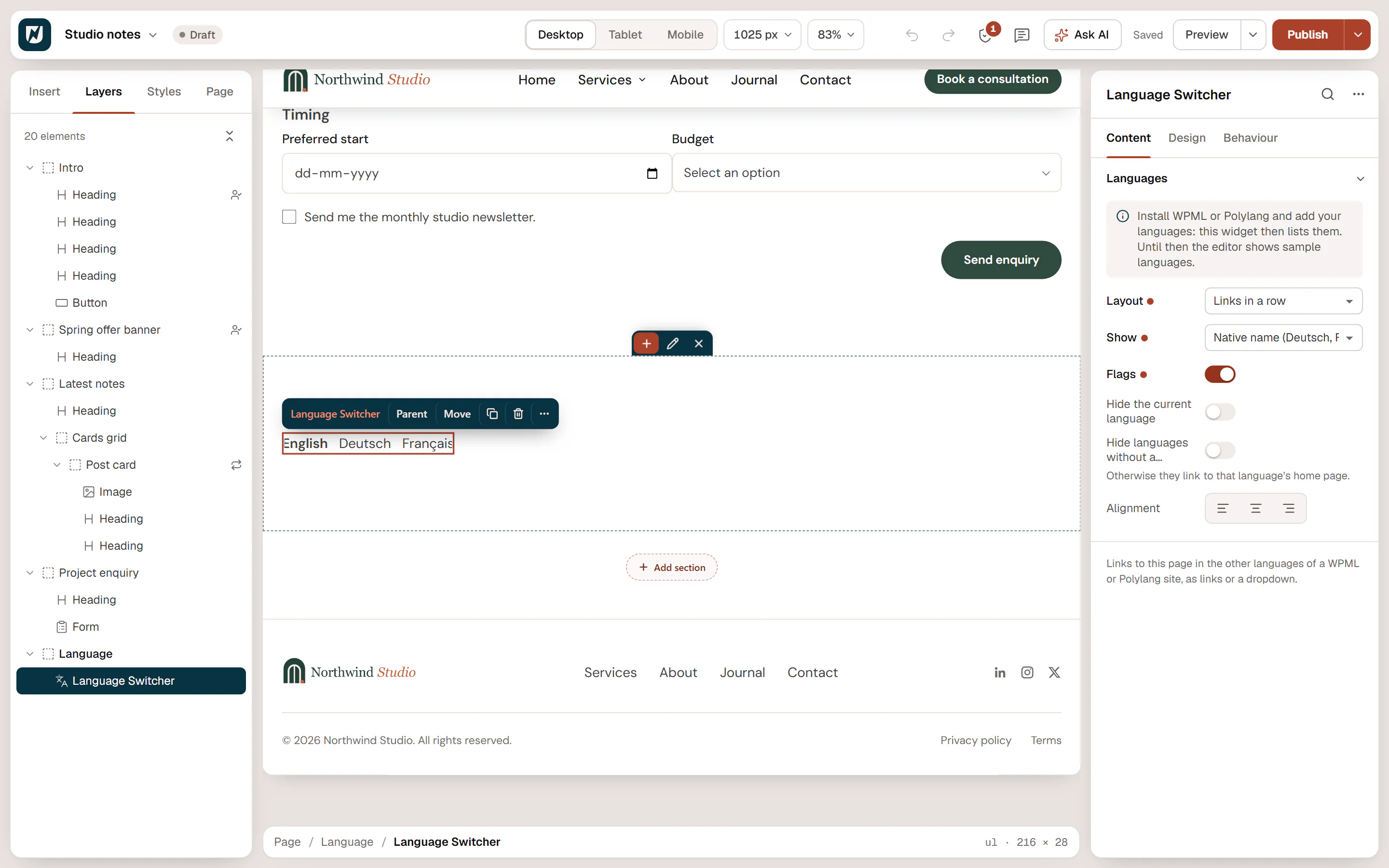
| Setting | What it does |
|---|---|
| Layout | Links in a row, or a Dropdown. |
| Show | Name in the current language, Native name (Deutsch, Français…), Code (EN, DE…) or Nothing (flags only). |
| Flags | Shows each language's flag from your translation plugin. |
| Hide the current language | Links in a row only: leaves out the language being viewed. |
| Hide languages without a translation | Leaves out languages in which the current page is not translated. Otherwise they link to that language's home page. |
| Alignment | Left, center or right. |
The Design tab sets the typography, the space between links, the colors (normal, hover and current language), the dropdown background and the flag width. See the Language Switcher widget page.
Language rules and texts
- Show elements per language. The Language rule in display conditions shows or hides an element for some languages, for example a note only on the English site.
- Cookie banner texts. With WPML, the title, message and button labels of the cookie banner can be translated in WPML's String Translation.
- Site kits. When you import a site kit into a site with the same languages, pages and templates get their languages back and stay linked as translations.