Animated Headline
A heading with a hand-drawn highlight around one word, or a word that keeps changing.
On this page
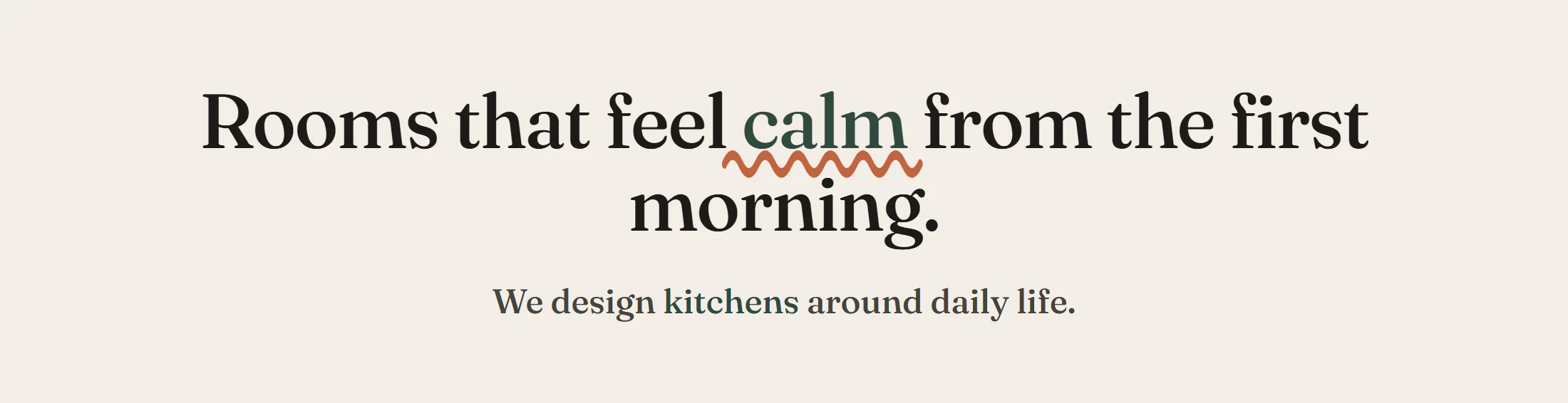
The Animated Headline widget draws attention to one idea in a heading. It either draws a hand-drawn shape (an underline, a circle, a strike) around a word, or cycles through several words in the same spot, like "We design kitchens / living rooms / workplaces".
Add an Animated Headline
Open Insert in the left panel and find Animated Headline in the Marketing group, or type "animated" in the search box. Drag it onto the canvas, or click it to add it next to the selected element. See Add elements.
The headline is made of three parts: Before text, the animated word or words, and After text. Leave either outer part empty if you do not need it.
Highlight one word
- Set Style to Highlight.
- Type the word to highlight in Highlighted text.
- Pick a Shape: an underline, a double or curly underline, a circle, a strikethrough or a cross out.
The shape is drawn when the headline scrolls into view. With Loop on, it is drawn again after the Display time. Change the shape's color and thickness in Design → Animated text.
Rotate through several words
- Set Style to Rotating.
- Type the words in Rotating words, one per line.
- Pick an Animation: Typing, Clip, Flip, Slide up or Fade.
Each word stays on screen for the Display time, then the next one appears. The first word is part of the page itself, so search engines and visitors without JavaScript see a complete sentence.
Content tab settings
| Setting | What it does |
|---|---|
| Style | Highlight draws a shape around one word. Rotating cycles through several words. Default: Highlight. |
| Before text | Text before the animated part. Supports dynamic data. |
| Highlighted text | The word or words that get the shape. Shown when Style is Highlight. Supports dynamic data. |
| Rotating words | The words to cycle through, one per line. The first one is shown without JavaScript. Shown when Style is Rotating. |
| After text | Text after the animated part. Supports dynamic data. |
| Shape | Underline, Double underline, Curly underline, Circle, Strikethrough or Cross out. Default: Underline. Shown when Style is Highlight. |
| Animation | How the words change: Typing, Clip, Flip, Slide up or Fade. Default: Slide up. Shown when Style is Rotating. |
| HTML tag | The heading level, from H1 to H6, or DIV, SPAN or P. Default: H2. Use one H1 per page. |
| Link | Makes the whole headline a link. Supports dynamic data. |
| Alignment | Left, Center, Right or Justify. Can differ per device. |
| Setting | What it does |
|---|---|
| Display time (ms) | How long each word, or the drawn shape, stays before the next cycle. Default: 2500 (500–20000). |
| Drawing duration (ms) | How long drawing the shape takes. Default: 1200 (100–6000). Shown when Style is Highlight. |
| Loop | Repeats the animation. Turn it off to draw the shape or show the words once. On by default. |
Design tab settings
| Section | Settings |
|---|---|
| Headline | Typography, Color, Text shadow, Text stroke and Stroke color (an outline around the letters), Text wrap (Balanced evens out line lengths, Pretty avoids a single word on the last line). |
| Animated text | Typography, Color and Background of the animated word. Shape: Shape color, Stroke width (relative to the text size; 12 by default), Draw over the text (puts the shape in front of the letters instead of behind them). Cursor color for the Typing and Clip animations. |
The Design tab also has the sections every element shares: Spacing & position, Background & border and Mask. See Spacing, size & position.
Behaviour tab
The Behaviour tab has the settings every element shares: anchor and classes, entrance animations, motion effects, visibility per device, display conditions and interactions. See Motion & effects and Visibility.
Tips
- Visitors who turn on "reduce motion" in their system settings see the finished result: the shape already drawn, or the first word. Your message still reads well.
- Keep rotating words about the same length, so the line does not jump when they change.
- For a highlight that stands out without moving, set Loop off: the shape is drawn once and stays.