Import from Elementor
Convert Elementor pages, templates and global colors and fonts into Urmi designs, and see what could not be converted.
On this page
If your site was built with Elementor, Urmi can rebuild those pages and templates as Urmi designs, and bring over Elementor's global colors and fonts into your Design System. Elementor's own data is never changed, so you can compare both versions and switch back at any time.
The importer reads the designs straight from your WordPress database. Elementor does not need to be active.
Go to Urmi → Settings → Import & export and scroll to Import from Elementor.
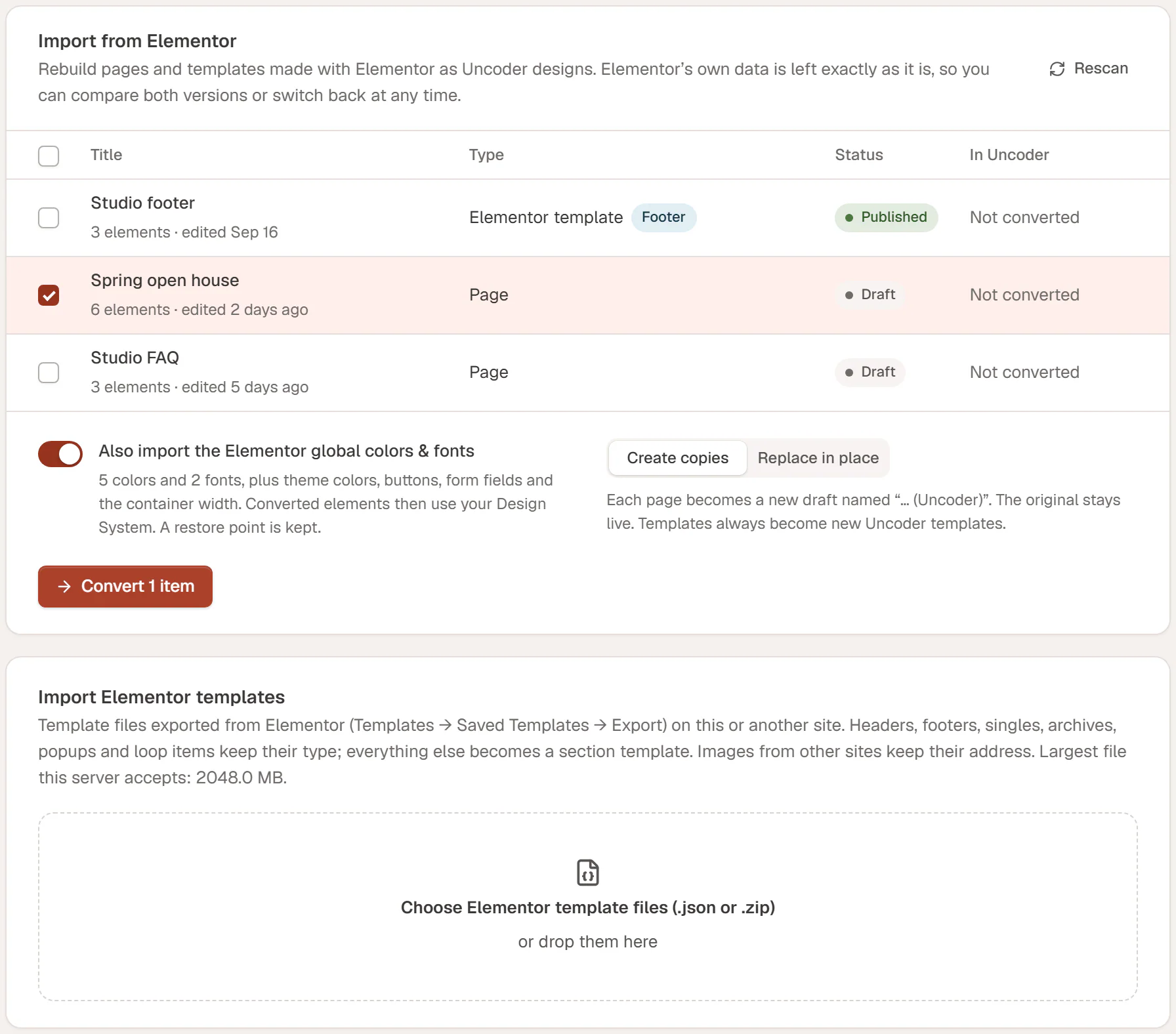
What the list shows
Urmi scans the site for pages, posts and Elementor templates that have an Elementor design. For each one you see:
- Title, the number of Elementor elements and when it was last edited. Click the title to view the page.
- Type: the content type, or Elementor template with its template type (such as Footer, Popup or Loop item).
- Status: published, draft and so on.
- In Urmi: Not converted, a link to each Urmi copy or template made from it, or Replaced in place.
Click Rescan after you add or change Elementor designs.
If a type shows Enable Urmi for this post type first, turn that type on under Settings → General → Post types, then rescan.
Convert pages and templates
Select what to convert
Tick the items in the list, or tick the box in the header row to select everything.
Decide about colors and fonts
Leave Also import the Elementor global colors & fonts on to bring Elementor's Site Settings into your Design System (see below), or turn it off.
Choose Create copies or Replace in place
See the difference below. Templates always become new Urmi templates, whatever you choose.
Convert
Click Convert (the button says how many items). Urmi converts one item at a time and shows the progress. When it is done, each item has a result line.
Create copies or Replace in place
| Mode | What happens | When to use it |
|---|---|---|
| Create copies | Each page becomes a new draft named "… (Urmi)". The original Elementor page stays live and unchanged. | To compare, polish the copy, then swap it in when you are happy. The default. |
| Replace in place | The page itself switches to its Urmi design, at the same address. Its Elementor data is kept. | When you are ready to move the live page to Urmi in one step. |
If you replace a page that already has an Urmi design, that design is overwritten. The importer warns you before, and WordPress revisions keep the previous version.
To go back from Replace in place, open the page in the WordPress editor and choose Switch back to the WordPress editor. The page stops using its Urmi design, and with Elementor active it shows its Elementor design again.
Templates
Elementor templates become Urmi templates of the matching type:
| Elementor template | Urmi template |
|---|---|
| Header, Footer | Header, Footer |
| Single post, Single page, Single, Product | Single post, Single page, Single |
| Archive, Product archive | Archive |
| Search results, 404 page | Search results, 404 page |
| Popup | Popup |
| Loop item | Loop item |
| Section, Container, Page, Global widget | Saved section |
Loop items and popups are converted first, then other templates, then pages. Pages that use a converted loop item or popup then point to the new Urmi version.
Display conditions are not converted. A converted header, footer or other theme template has no conditions yet, so it does not show anywhere until you set where it appears in the Theme Builder. The same goes for popup triggers and layout: set them in the popup settings.
Import Elementor's global colors and fonts
Also import the Elementor global colors & fonts takes Elementor's Site Settings and adds them to your Design System: the global colors and fonts, plus theme colors, button and form field styles and the container width. Elementor's site-wide custom CSS is not imported. The line under the switch says how many colors and fonts were found.
- It is on by default the first time, when Elementor Site Settings exist. After one import it says Already imported once.
- Converted elements then use your Design System colors and text styles, instead of fixed values, so changing a color later updates every converted page.
- Urmi saves a restore point first. The result says Design System updated from Elementor and you can go back in the Design System history.
- Only administrators can import colors and fonts.
To import only the colors and fonts, without converting anything, select nothing and click Import colors & fonts.
Read the report
Each converted item gets a result line with a badge (Draft copy, Replaced in place or the template type), the number of elements, what needs attention, and Edit and View links. A green check means everything was converted. A warning sign means something needs a look: click Details.
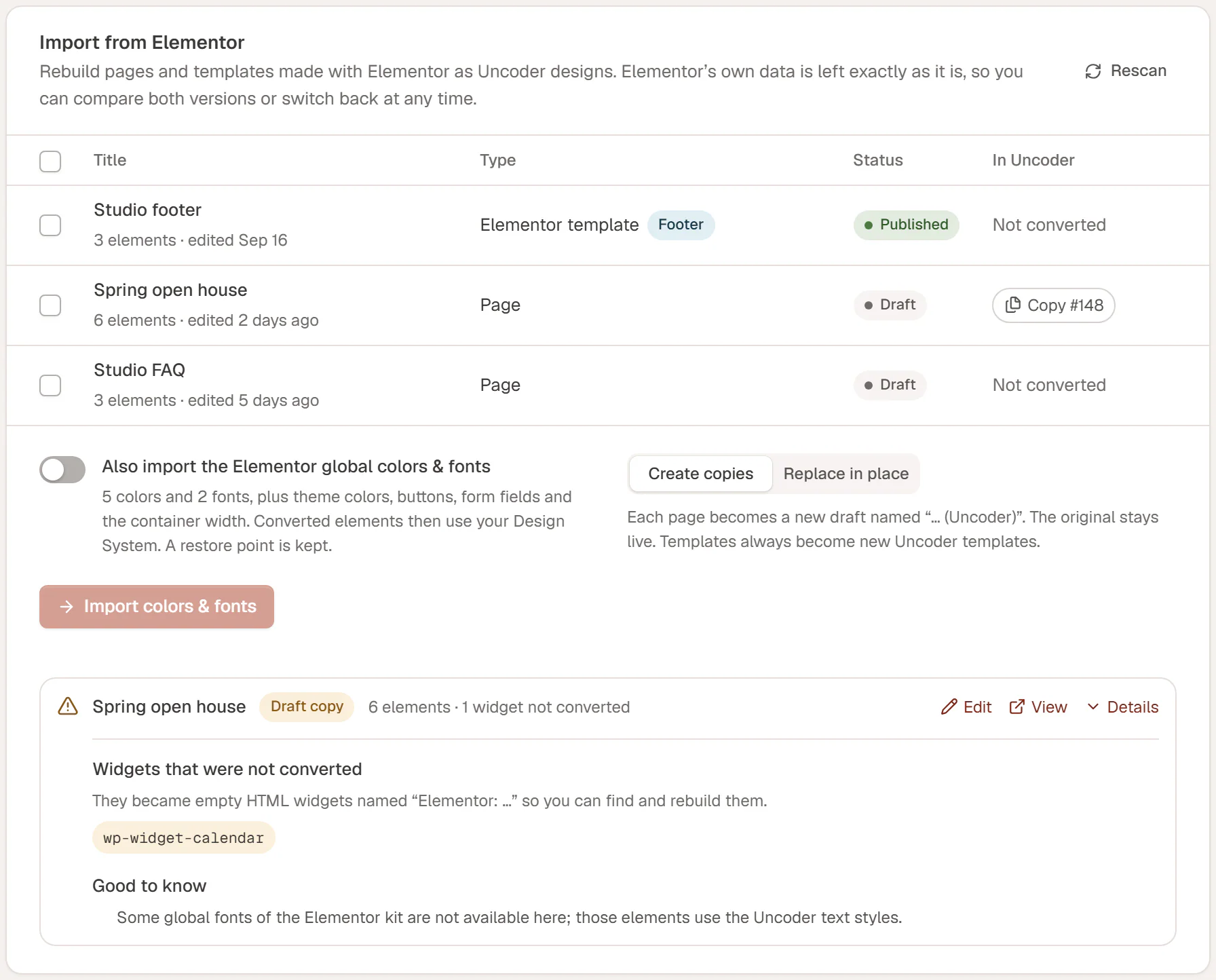
The details can list:
| Section | Meaning |
|---|---|
| Widgets that were not converted | Widgets Urmi has no equivalent for, such as widgets from other add-on plugins. Each became an empty HTML widget named "Elementor: …" in the right place, so you can find it in the Layers panel and rebuild it with Urmi widgets. |
| Settings to check | Widget settings that could not be carried over exactly, per widget. Check these elements in the editor. |
| Good to know | Notes about the conversion, for example fonts that are not available in your Design System, or custom CSS on an element or a page. Urmi does not convert custom CSS: recreate that look with the element's settings. |
| Images still loaded from another site | Images whose address points to another site. Upload them to your media library and pick them again, or they break when that site goes away. |
| Dropped while saving | Values that were invalid and left out when the design was saved. |
If an item could not be converted at all, its line says why, for example that you may not create that kind of template.
Import Elementor template files
You can also convert templates you exported from Elementor on this or another site (in Elementor: Templates → Saved Templates → Export).
Choose the files
In Import Elementor templates, click Choose Elementor template files (.json or .zip) or drop the files on it. You can choose several files, or one
.zipwith many.Wait for the conversion
Each file is converted right away and gets a result line with the same report as above.
Headers, footers, singles, archives, popups and loop items keep their type; everything else becomes a saved section. Images from other sites keep their address, so check the report for images to upload. Only administrators can upload template files.
What converts
Urmi converts containers and the old section and column layout, and most Elementor and Elementor Pro widgets to their Urmi equivalent.
Show the list of supported Elementor widgets
Heading, Text Editor, Image, Button, Icon, Icon Box, Image Box, Icon List, Video, Spacer, Divider, Counter, Progress Bar, Testimonial, Tabs and Nested Tabs, Accordion, Toggle and Nested Accordion, Social Icons, Google Maps, Star Rating and Rating, Basic Gallery and Gallery, Image Carousel, Media Carousel, Alert, HTML, Shortcode, Menu Anchor, Form, Posts, Archive Posts, Portfolio, Loop Grid, Loop Carousel, Nav Menu, Call to Action, Price List, Price Table, Flip Box, Countdown, Animated Headline, Testimonial Carousel, Reviews, Blockquote, Share Buttons, Lottie, Table of Contents, Nested Carousel, Code Highlight, Hotspot, Slides, Site Logo, Site Title, Page Title, Post Title, Post Excerpt, Post Content, Featured Image, Archive Title, Post Info, Post Navigation, Author Box, Post Comments, Search Form, Breadcrumbs and Login, plus Elementor's newer Heading, Paragraph, Button, Image, Divider and YouTube elements.
Always check converted pages in the editor and on a phone before you publish them: the result is a close match, not a pixel-perfect copy.